ZapEsp32 Configuration
Enter zapesp.local into your browser address bar to access the ZapEsp32 Web UI.
Click the ESP32 menu item to enable modules/components & change the default ESP32 GPIO Pins according to how you have built your ZapEsp32. If you have used suggested default pins, make sure the pin numbers match as per your ESP32 SOC type (ESP32 , ESP32-S3, ESP32-S2 Mini)
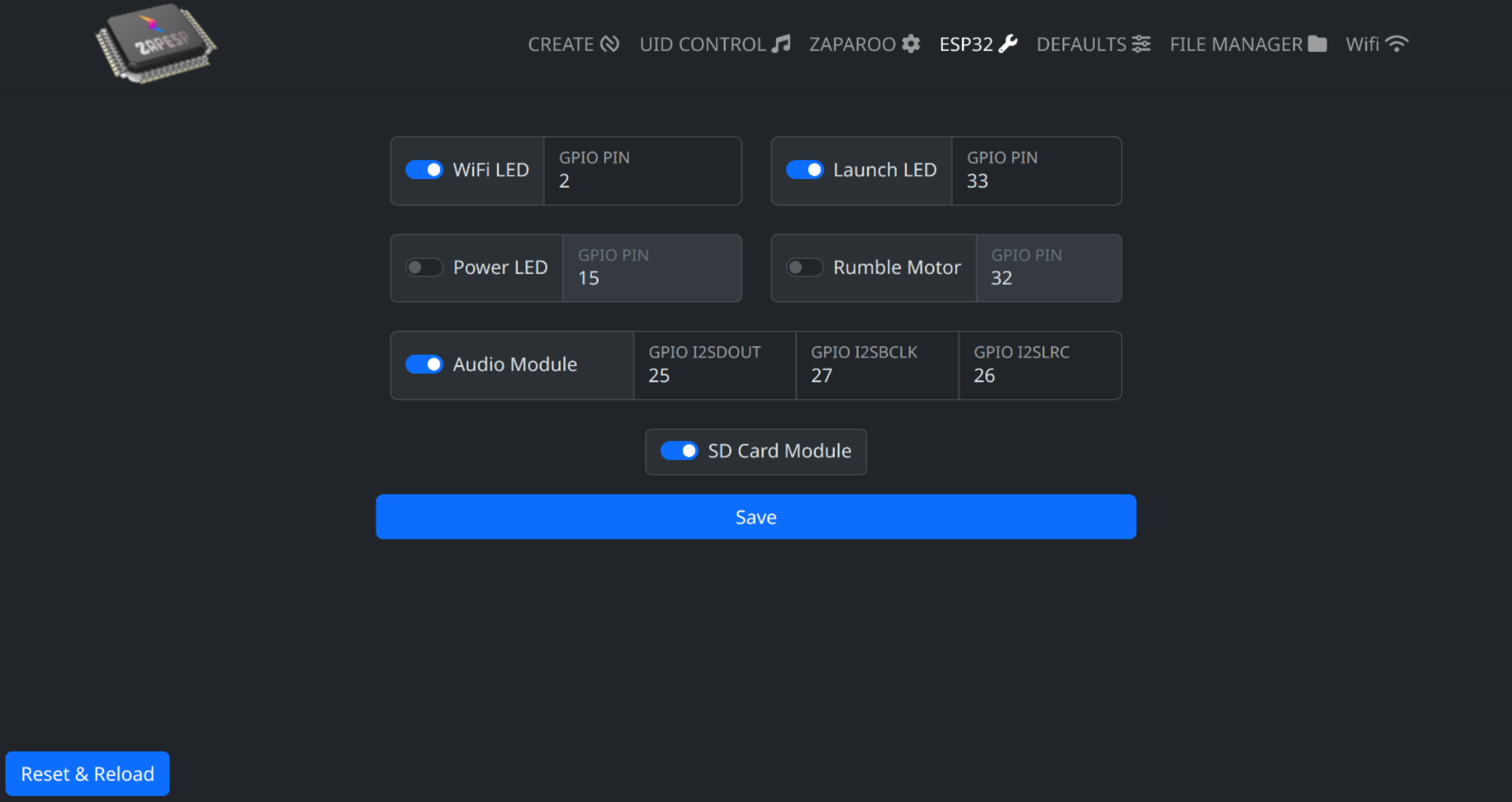
Click Save to commit your changes - ZapEsp32 will reboot once the changes have been saved.
Note: A hard power cycle may be required if changing GPIO pin numbers.