Optical Drive Reader
An optical disc can work as a Zaparoo token on Linux-based systems. Connect a CD, DVD, or Blu-ray drive to the device running Core, and Core can match supported game discs to indexed disc images or use the disc ID for a mapping.
Core does not run games or media directly from the physical disc. The disc acts as a trigger for an indexed file or ZapScript command.
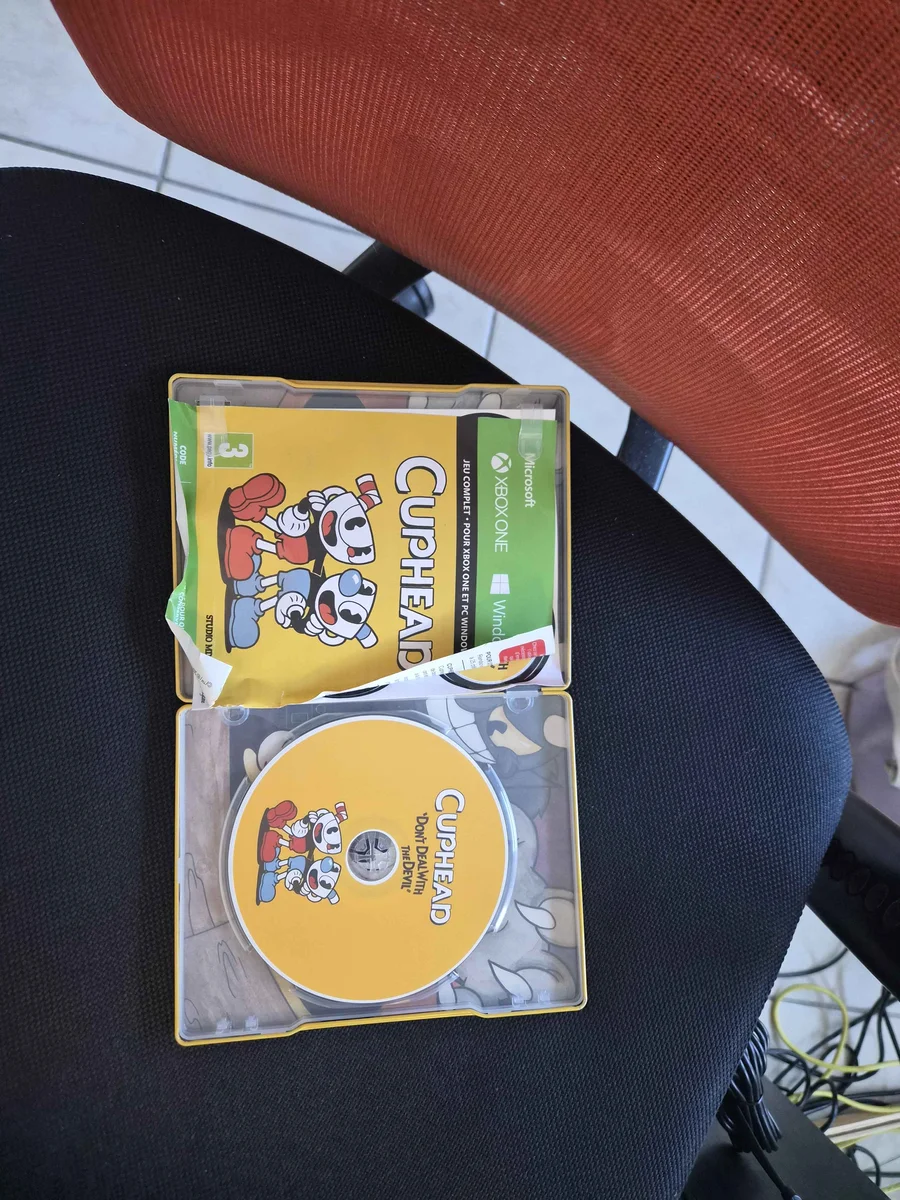
Liz made a custom Cuphead disc to launch the game through Zaparoo, shared in Community Showcase #7.
Platforms
Enable the reader
Optical drives are not automatically detected by default. Choose automatic detection or configure a specific device path.
Enable automatic detection
On MiSTer, automatic detection can conflict with physical CD cores. Enable it when you want Core to use the drive as a Zaparoo token reader.
Add these driver settings to your config.toml:
[readers.drivers.opticaldrive]
enabled = true
auto_detect = true
Core will look for optical drives exposed as /dev/sr0, /dev/sr1, and similar Linux device paths.
Use a specific device path
Add a readers.connect entry to config.toml:
[[readers.connect]]
driver = "opticaldrive"
path = "/dev/sr0"
Restart Core after changing the config. Use lsblk or check /dev/sr* if you are not sure which path your drive uses.
Launch an indexed game from its original disc
Core can identify supported game discs and match them to disc images in your indexed media library. Disc identification is based on GameID, created by Niema Moshiri. Insert the original disc, and Core launches the matching indexed file when exactly one match is found. Existing token mappings take priority over automatic matching.
Supported systems are:
- Nintendo GameCube
- Sega CD/Mega CD
- Neo Geo CD
- PlayStation
- PlayStation 2
- PSP
- Sega Saturn
Core indexes game IDs from .chd, .cue, .gcm, and .iso files. Compressed .cso, .gcz, and .rvz images are not supported for game ID matching.
Run a media database update after updating Core so game IDs are added to existing indexed media. The physical disc and indexed image must produce the same game ID. If no match or multiple matches are found, Core does not choose a game automatically; you can still map the disc ID manually.
Choose the scanned ID
Core reads the disc's ISO 9660 volume identity to find its UUID and LABEL, checks supported game discs for a game ID, then scans the result as a disc token.
The id_source option controls which value is used for matching:
[[readers.connect]]
driver = "opticaldrive"
path = "/dev/sr0"
id_source = "merged"
The available modes are:
mergedcombines UUID and label as<UUID>/<LABEL>. This is the default and requires both values.uuiduses only the disc UUID.labeluses only the disc label.
Core does not fall back to another value when the selected source is unavailable. Choose uuid or label when your disc only provides one of them. A supported game disc can still match indexed media by game ID when no token ID is available, but the game ID never becomes the token ID used by mappings. If Core cannot read the selected token ID or a supported game ID, nothing is scanned. Removing the disc clears the active token.
Use merged to distinguish a disc by both values when they are present. For custom burned discs, label gives you a token ID you can choose and keep unique.
Map a disc to a command
Mappings override automatic game ID matching. For a custom disc, one practical setup is to use the disc label as the token ID.
Configure the reader to use labels:
[[readers.connect]]
driver = "opticaldrive"
path = "/dev/sr0"
id_source = "label"
Burn a data disc with a label such as SNES_RANDOM, then add a mapping:
[[mappings.entry]]
token_key = "id"
match_pattern = "SNES_RANDOM"
zapscript = "**launch.random:SNES"
Restart Core after changing mapping files. If you are using an existing disc, check the Core logs to see the exact ID Zaparoo scanned before writing the mapping.
Core does not write anything to the disc. Blank discs do not work because they contain nothing to read. If you are burning a disc anyway, a token file on the disc avoids the mapping step.
Use a token file on a disc
A burned data disc can carry its own ZapScript, the same way a USB drive token does:
- Create a plain text file named
zaparoo.txtwith the ZapScript you want to run. - Burn it into the root folder of a data disc using the standard ISO 9660 filesystem.
- Insert the disc into the drive Core is watching.
Example zaparoo.txt:
**launch.random:SNES
The filename is matched case-insensitively and the file can be up to 1 MiB; surrounding whitespace is ignored. The disc's UUID and label still form the token ID, so an existing mapping for that disc keeps working and takes priority over the file. A disc with no readable UUID or label but a valid zaparoo.txt is scanned too, and Core reads the disc again when only the file changed between burns.
Drive requirements
On a supported Linux-based platform, the operating system must expose the drive as /dev/sr0, /dev/sr1, or another /dev/ path. USB and internal SATA optical drives can work through these paths. Blu-ray drives can also work when Core can read the disc's ISO 9660 volume information.
Troubleshooting
Drive not detected
Check that Linux can see the drive:
lsblk
ls -l /dev/sr*
Make sure the configured path is absolute and points to a device under /dev/, such as /dev/sr0. Restart Core after changing the path.
If the drive still is not scanned, enable debug_logging = true in config.toml and check the Core logs.
Indexed game does not launch
Update the media database after installing this Core version. Confirm the indexed file uses a supported system and one of the .chd, .cue, .gcm, or .iso formats.
Core only launches automatically when the physical disc matches exactly one indexed file. Check the Core debug logs for gameid identification and property-matching messages. Existing mappings take priority, so check whether the disc UUID or label already has a mapping.
Disc ignored
Enable debug_logging = true in config.toml, insert the disc again, and find the optical media identification probe changed message in the Core logs. It reports whether Core found a UUID, label, or game ID property.
If the UUID and label are empty, the disc may not contain readable ISO 9660 volume information. Supported game discs may still work through game ID matching, and a disc with a zaparoo.txt file runs that file. Other discs need the UUID or label required by your configured id_source. Try a different disc, or burn a data disc with a label or a token file if you want a custom token.
Wrong command launches
Check the Core logs for the actual token ID. Then compare it with your mapping's match_pattern and the reader's id_source setting.
Restart Core after changing mapping files.