Add Artwork and Metadata
Frontend displays artwork and game information after Zaparoo Core imports compatible local files. Frontend and Core do not download artwork from the internet. Start with Update All's artwork and manual databases, a metadata pack, or an external scraper, then import the results into Core with Update metadata.
How artwork reaches Frontend
- Update the media database. Core finds your games and makes them available to Frontend.
- Obtain artwork and metadata. Turn on Update All's artwork and manual databases, or use a metadata pack, ZapScraper, Skraper, or compatible EmulationStation files you already have.
- Update metadata. Core imports the local artwork and game information and matches it to indexed games.
- Browse the results. Frontend displays the imported covers, screenshots, descriptions, and other metadata.
Artwork can be stored on the MiSTer SD card, USB storage, or a NAS that Core can read.
Understand the library actions
Both actions are under Settings > Library > Maintenance.
| Action | What it does | When to use it |
|---|---|---|
| Update media database | Rescans your game folders to pick up added or removed files. You choose which systems to scan. | After changing your game library or launcher paths. |
| Update metadata | Imports artwork and details from files you already have, for entries that have not been imported yet. | After adding a pack, gamelist.xml, or compatible media folders. |
| Update metadata with Replace existing | Refreshes previously imported metadata and cleans up artwork references that no longer exist. | After replacing artwork, correcting paths, or changing imported metadata. |
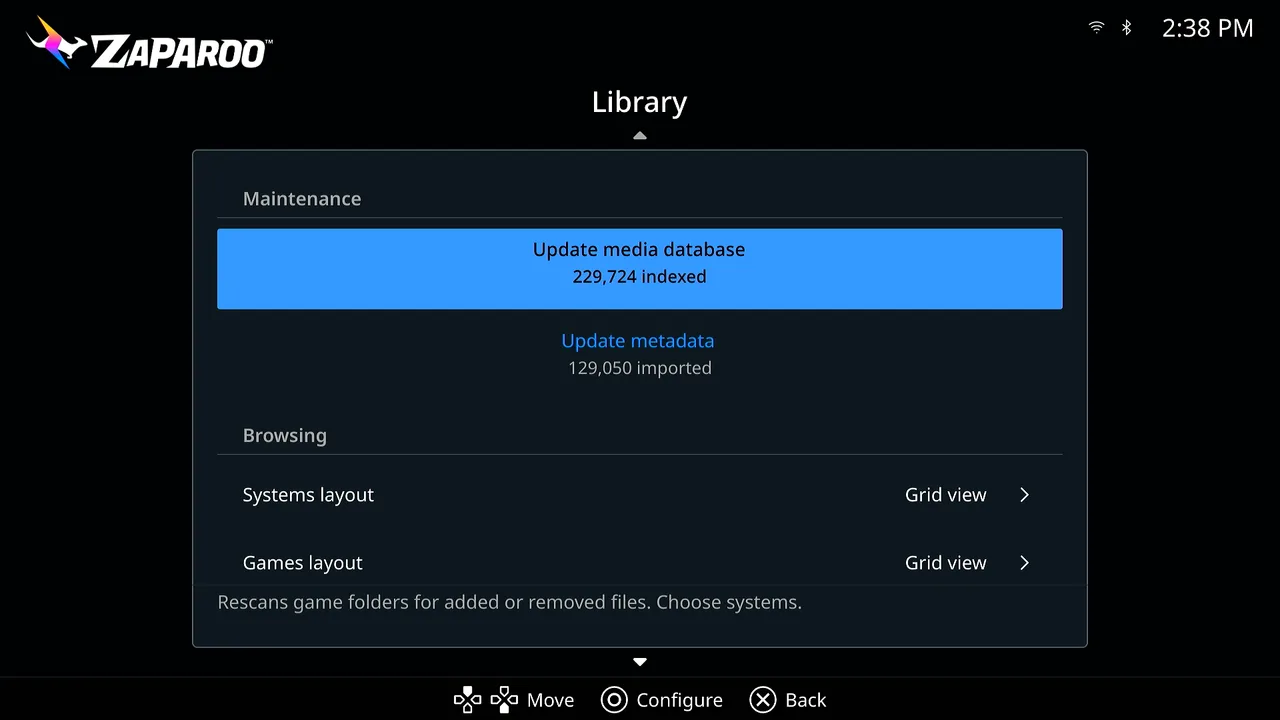
Updating metadata cannot start while a media database update is running, and only one import can run at a time. Core pauses the import while media is running and resumes when playback stops.
Choose an artwork source
| Source | Use it when |
|---|---|
| MiSTer artwork and manuals from Update All | You want box art and manuals installed by Update All. |
| Metadata pack | You have a compatible ROM set and want prebuilt artwork. |
| ZapScraper | You want artwork generated for a specific MiSTer SD card, local folder, or network location. |
| Skraper | You want to choose the artwork and metadata generated for your library. |
| Existing EmulationStation files | You already have compatible gamelist.xml files or media folders from another frontend. |
Metadata packs may not match custom naming, ROM hacks, or unusual library layouts. The Core media database and scraper guide documents compatible gamelist.xml files, media folders, custom bundle paths, and path resolution.
MiSTer artwork and manuals from Update All
Update All installs box art and game manuals for you. Turn on Game Artwork DBs and Game Manuals (EN) DBs in its settings, pick the systems you want, and run it. Each artwork database can be set to 2D boxes, 3D boxes, or box plus screenshot, and there is one for Arcade. After Update All finishes, choose the mister-docs source in Update metadata. Core imports the box art, the year, genre, developer, and player count, a description in your language when the pack has one, and the manual, without downloading anything itself. See mister-docs for what it reads.
Metadata packs
Metadata packs provide ready-made artwork and gamelist.xml files for compatible ROM sets.
Boss's Basic Batch
Boss's Basic Batch is a metadata and artwork pack from BossRighteous. It includes image dumps and gamelist.xml files mapped to Zaparoo title slugs for known ROM sets.
Download the ZIP and extract it into your MiSTer games directory. The release notes also explain that Arcade contents need to be moved to /media/fat/_Arcade, where MiSTer's .mra files live.
Big Blue's Big Bundle
Big Blue's Big Bundle is a metadata and artwork pack from BigBlue709. It includes Neo Geo, broad MiSTer Arcade coverage, and some console artwork.
Use it as a starting point rather than a complete current set because newer Arcade cores may not have artwork yet.
ZapScraper in MiSTer Companion
MiSTer Companion includes ZapScraper, which downloads game artwork through ScreenScraper for Recalbox-style setups or Frontend. It can write to a selected MiSTer SD card or a custom local or network location.
ZapScraper has two output formats:
- Recalbox Compatible creates a standard Recalbox-style
gamelist.xmlstructure. - Zaparoo Companion creates output for Frontend.
Supported folders include console and handheld systems, Arcade, and AmigaVision.
Skraper
You can use Skraper with a ScreenScraper account. Before running a scrape, set Skraper to RecalBox mode so it outputs the gamelist.xml files Core expects. Set the default image style to the artwork you want.
Skraper supports the game folder names MiSTer uses, so you can point it directly at your SD card or a NAS share.
Import artwork and metadata
After adding compatible files:
- Open Settings > Library > Maintenance.
- Run Update media database if you added games or have not indexed the library yet.
- Select Update metadata. Choose the Source (Frontend remembers it for next time), pick the Systems to cover (or all of them), turn on Replace existing if you are refreshing artwork you imported before, then select Start import.
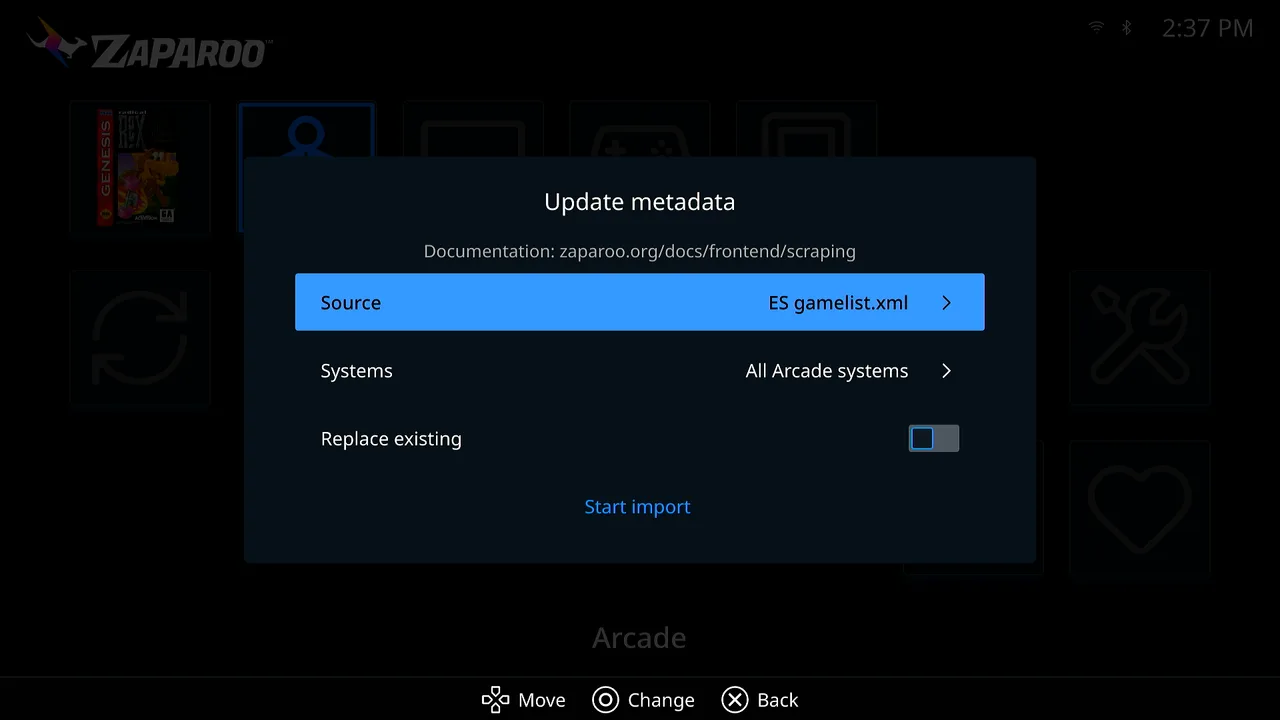
Frontend shows import progress by system when Core provides it. When the import finishes, artwork appears in the game browser.
To update or import one system, or one game, at a time, open its options menu and choose Update media database or Update metadata there.
Add Arcade artwork
MiSTer Arcade games use .mra files under /media/fat/_Arcade. Use a pack that explicitly includes _Arcade content or use ZapScraper's Arcade support. A general console pack does not necessarily cover Arcade games. Update All's Game Artwork DBs include an Arcade database. Import it with the mister-docs source. A gamelist written against MAME ROM sets, such as one from Skraper, also works through the gamelist.xml source; see MiSTer arcade gamelists.
Change the displayed artwork
Open Settings > Library > Browsing, then change Preferred artwork to choose which imported image type Frontend asks Core for first (box art, 3D box art, screenshot, title screen, wheel, marquee, and more). See Browse and Launch Games for the other library display settings.
For your own system artwork, Hub icons, and system names, see Customize Frontend.
Fix artwork problems
Follow Troubleshoot Frontend if games are missing, Update metadata is unavailable, new artwork does not replace old artwork, or files on USB storage or a NAS are not found.
For detailed scraper behavior, supported file layouts, custom bundles, and recovery options, see the Core media database and scraper guide.