Customize Frontend
Zaparoo Frontend can switch color schemes, and load your own system artwork, Hub icons, and system display names without rebuilding Frontend.
Image and name customization is read at startup. Restart Frontend after adding, changing, or removing custom files.
Color scheme
Open Settings > Appearance > Color scheme to change the colors used across every screen. There are 19 presets: Zaparoo Dark, Zaparoo Light, and Classic Purple; editor and terminal palettes such as Nord, Dracula, Synthwave '84, Gruvbox, Everforest, Solarized Dark, Rosé Pine, and Oxocarbon; the light Flexoki Paper and Solarized Light; and retro sets like Amber Phosphor, Green Phosphor, Neo Geo, NES, Virtual Boy, and Game Boy. The change applies immediately.
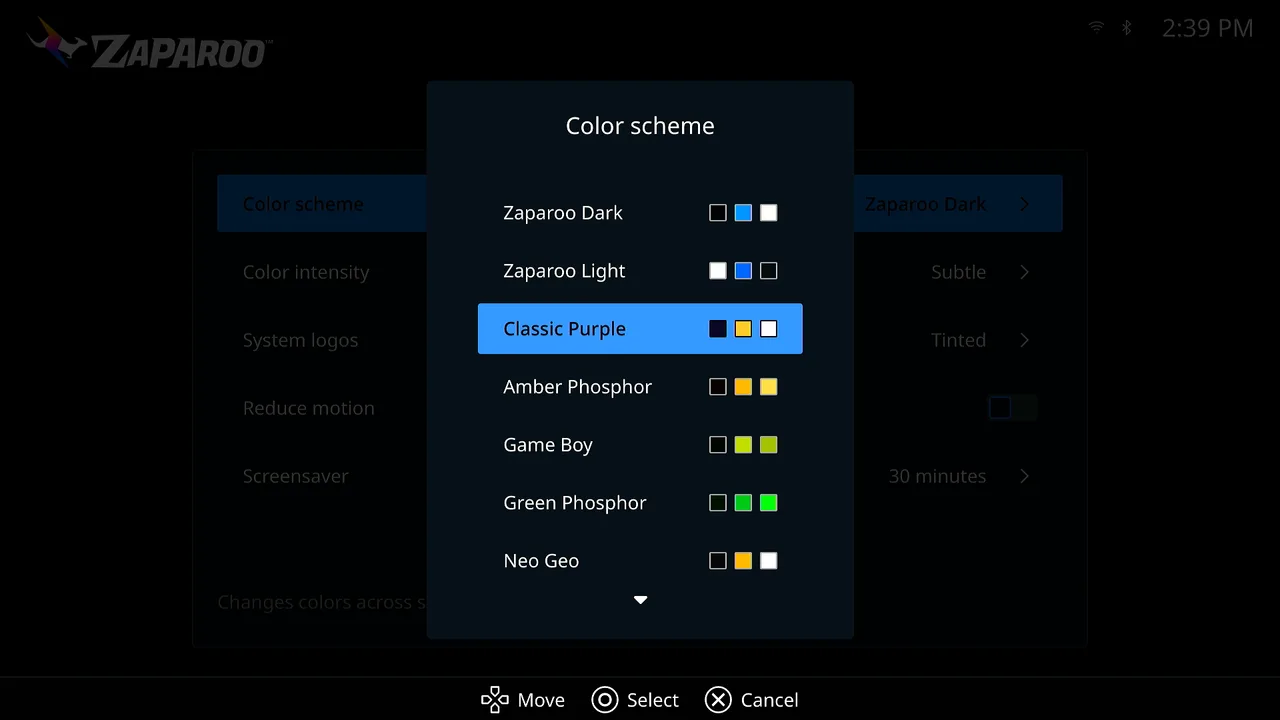
The selection is stored in /media/fat/zaparoo/frontend.toml:
[settings]
color_scheme = "nord"
The picker shows a three-color swatch for each preset. In the file, the value is the preset name in lowercase with hyphens, such as nord, dracula, or amber-phosphor; an unknown value falls back to zaparoo-dark.
Presets recolor Frontend's built-in tinted artwork. Your own images and full-color logos are not changed.
Color intensity, on the same page, sets how strongly the accent color tints tile edges and selected rows. Subtle is the default and matches earlier releases; Vivid pushes the tint harder. It is stored next to the scheme:
[settings]
color_scheme = "nord"
color_intensity = "vivid"
Custom folder
On MiSTer, the default customization folder is:
/media/fat/zaparoo/custom/
Create one subfolder for each kind of image override:
/media/fat/zaparoo/custom/
  systems/      # system artwork in the systems grid
  hub/          # Hub category and action icons
To use another folder, edit /media/fat/zaparoo/frontend.toml:
[custom]
dir = "/media/usb/zaparoo-art"
Image filenames
Name each image after the ID it overrides. Matching is case-insensitive, so snes.png and SNES.png match the same system.
Supported image types are PNG, JPG, JPEG, WEBP, BMP, and SVG.
System artwork
System artwork in systems/ uses Zaparoo system IDs:
systems/snes.png
systems/genesis.svg
systems/turbografx16.webp
Hub icons
Hub icons in hub/ use category or action IDs:
| ID | Hub item |
|---|---|
arcade | Arcade category |
computer | Computer category |
console | Console category |
handheld | Handheld category |
other | Other category |
resume | Resume |
favorites | Favorites |
recents | Recently played |
update | Update |
settings | Settings |
hub/arcade.png
hub/favorites.svg
hub/settings.svg
A tile you added to the Hub yourself can use its own icon too: give the [[hub.items]] entry in frontend.toml an icon = "name" value and drop a matching hub/name.png in the folder.
Custom images are shown as-is. Built-in icons are tinted to match the color scheme, but your override images are not recolored.
System names
To rename systems in Frontend, add a [custom.system_names] table to /media/fat/zaparoo/frontend.toml:
[custom.system_names]
snes = "Super Nintendo"
psx = "PlayStation"
genesis = "Mega Drive"
The key is the system ID. Matching is forgiving about case and punctuation, so snes, SNES, and S.N.E.S resolve to the same system.
Custom names take priority over Frontend's built-in regional names and names reported by Core.
Regional system names
Frontend also includes built-in regional system names and logo variants. Open Settings > Language, then set Region to Automatic, Americas, Europe, or Japan.
Use custom system names when you want a specific name regardless of the regional setting.
System logo style
Frontend ships its built-in system logos in two styles. Settings > Appearance > System logos switches between Tinted, which follows the active color scheme, and Full color. Tinted is the default. This setting only affects the built-in logos, not your own system artwork.
Configuration file
Frontend stores its settings in /media/fat/zaparoo/frontend.toml and edits that file in place, so comments you add by hand survive. The Hub layout is a list of [[hub.items]] entries, one per tile, with a type of category, action, system, folder, zapscript, or blank and an id, path, or script to match:
[[hub.items]]
type = "category"
id = "Arcade"

[[hub.items]]
type = "action"
id = "favorites"

[[hub.items]]
type = "zapscript"
script = "**launch.random:SNES"
name = "Random SNES"
Arranging tiles from the Hub writes this for you. Leave the [hub] known list alone; Frontend uses it to remember tiles you removed.