Zaparoo Frontend
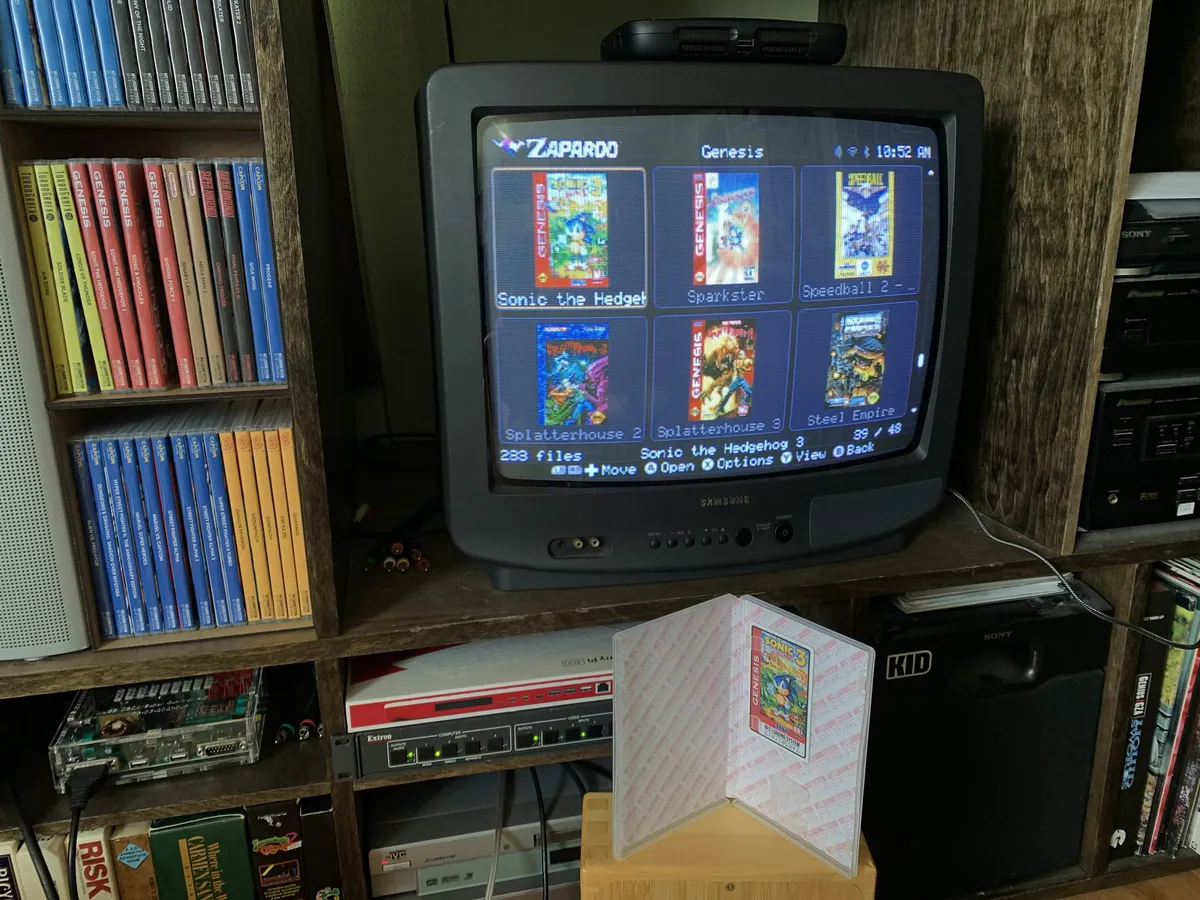
Zaparoo Frontend running as part of BigBlue709's CRT setup in Community Showcase #6.
Zaparoo Frontend is a TV and controller-friendly interface for browsing and launching your Zaparoo Core media library on MiSTer FPGA.
Frontend is optional. It runs on the MiSTer display and uses Core for media scanning, launching, metadata, favorites, and token writing. You can continue using physical tokens, the Zaparoo App, the Web UI, or the TUI with or without Frontend.
How Frontend works
Frontend displays the library managed by Core. Core finds games during a media database update, adds artwork and game information when you choose Update metadata, and launches the selected game. Frontend provides the on-screen library, menus, and controller interface for those actions.
Start with Add Artwork and Metadata to download libretro covers and screenshots or import local artwork, descriptions, and manuals.
Quick start
- Install or update Frontend on MiSTer.
- Start Frontend. If prompted on an empty library, select Start media update. The scan runs in the background.
- Add artwork and metadata if you want game covers and descriptions.
- Browse and launch games from the library hub.
For platform-specific launcher behavior, see the MiSTer launcher documentation.
Credits
A big thank you to Andrea Bogazzi, BossRighteous, and Tim Wilsie for creating Zaparoo Frontend with Wizzo, to Giancarlo Erra, Peter Brittain, and theypsilon for browsing, favorites, and updater contributions, and to the translators: Andrea Bogazzi (Italiano), Carlos R. (Español), devilschile2 (Euskara), and Wilfried Jeanniard (Français). If Frontend has become part of your setup, supporting Zaparoo keeps work like this going.
The optional accelerated HDMI display path builds on Nigel Breslaw's MiSTer MagiK scanout work.
Source and license
The Frontend source code is available under the PolyForm Noncommercial License 1.0.0. Non-commercial use is allowed under that license. For commercial licensing, contact legal@zaparoo.com. The bundled updater (zaparoo-update) is licensed separately by its author, and a Frontend commercial license does not cover it.