Printing Guide
This guide covers materials, tools, and techniques used by the Zaparoo community for printing labels at home. Make sure you have the right to print the artwork you use; see the legal restrictions on the labels page.
Materials
Sticker paper
Matte vinyl sticker paper is a popular choice in the community. It produces clean results, handles well in most inkjet printers, and takes lamination well. Search for "matte vinyl sticker paper A4 inkjet" on Amazon or AliExpress.
Glossy vinyl looks sharper but can bleed or fade within days without a lamination layer on top. If you go glossy, plan to laminate.
Holographic rainbow vinyl is a popular option for special or favorite cards. It gives a foil/shimmer effect. Search for "holographic vinyl sticker paper A4" on Amazon.
The metallic layer in holographic vinyl can weaken the NFC signal. Test one card before doing a batch.
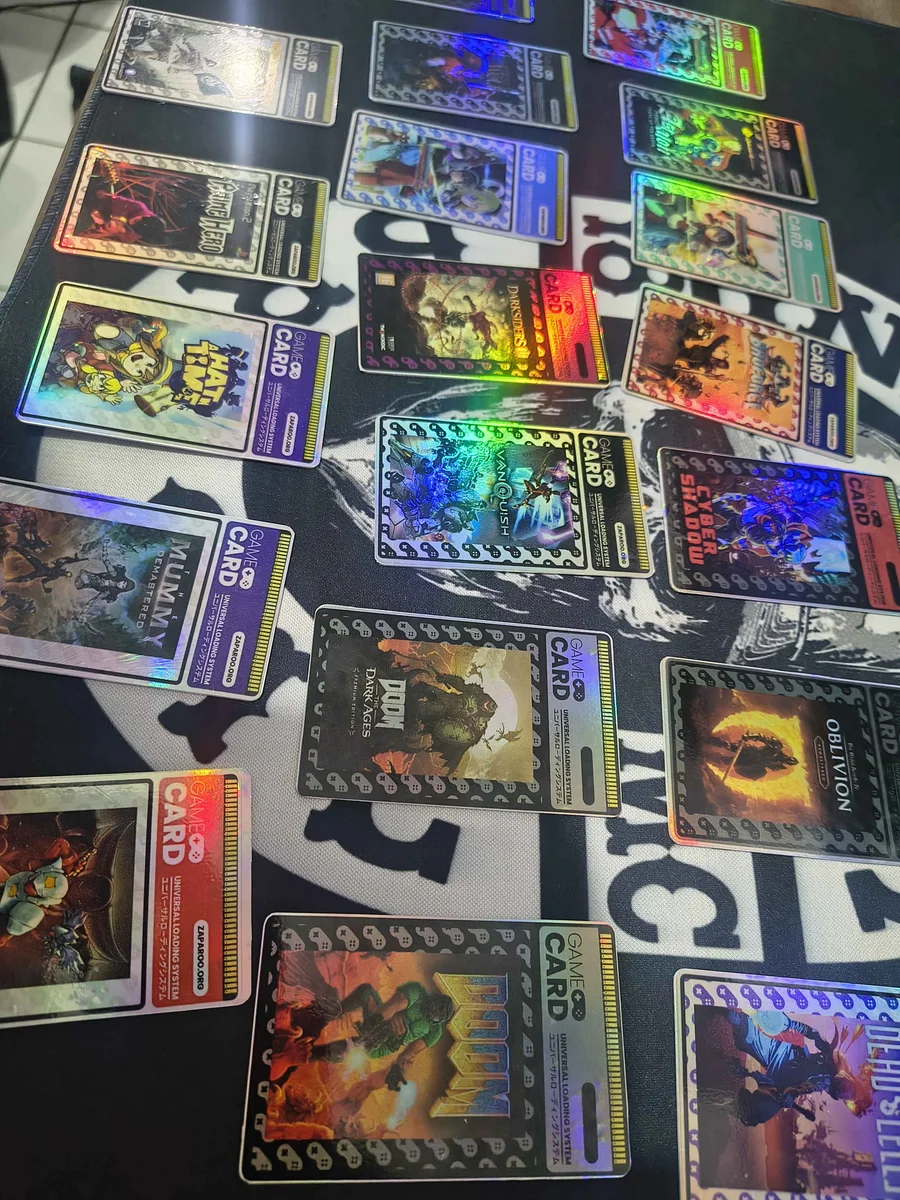
Holographic vinyl labels by whtafck_remix, featured in Community Showcase #2.
Matte sticker paper (non-vinyl, like Avery) is a cheaper option that works fine for testing or large batches where cost matters.
Inkjet-printable PVC cards
If you want to skip labels entirely, you can print directly onto blank NFC cards using inkjet-printable PVC cards with an aftermarket PVC card tray. Only certain Canon and Epson inkjet models support this. Check the Brainstorm ID printer compatibility list before buying a printer or tray. One community member got set up with a Canon TS702a and aftermarket tray for about $130 total.
Protection
Unprotected inkjet prints will smear when touched. You have a few options:
Self-adhesive cold lamination sheets are the community favorite. Apply a lamination sheet over your printed sticker paper before cutting. This protects against scratches, fingerprints, UV, and water. Matte vinyl with glossy lamination is a good combination for appearance and durability.
Clear coat spray is a quicker alternative. Spray your printed sheets and let them dry before cutting. Less durable than lamination but much faster for large batches.
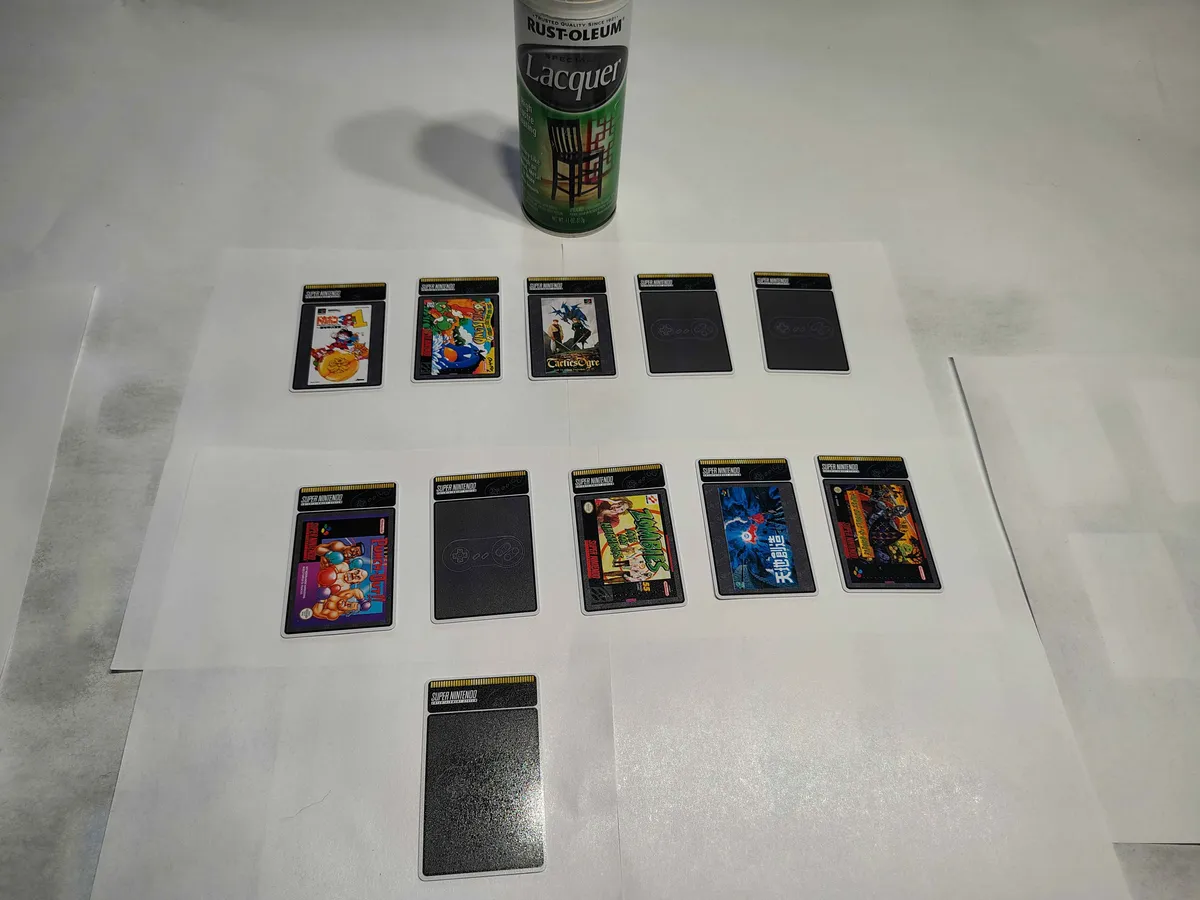
Cards being protected with lacquer by grego2d, featured in Community Showcase #6.
Holographic lamination sheets can be applied over matte prints for a shimmer effect without needing holographic sticker paper.
Avoid heat lamination. The heat can damage the NFC chip in your cards. Always use cold/self-adhesive lamination.
Printers
Most consumer inkjet printers can work for sticker sheets, but print quality and paper handling vary a lot. Models the community has had good results with, as of August 2026:
| Printer | Why | Watch out for |
|---|---|---|
| Epson EcoTank L8050 and ET-4800 | Refillable ink bottles keep high-volume printing cheap | Larger and pricier up front |
| Canon TS702a | Budget option that also takes a PVC card tray for direct-to-card printing | |
| HP Envy 2820e | Decent results on matte sticker paper using the "glossy photo" setting | |
| Brother J4335-DW | Good print quality | No manual feed, so it can struggle to pick up heavier sticker paper |
Laser printers can work with compatible paper, but they usually produce less vibrant colors than inkjet. Be careful with vinyl sticker paper in a laser printer because the heat can melt it. Laser is better suited to regular paper or paper-based sticker sheets.
Local print shops are a solid option if you don't want to buy a printer. Design your labels at home, export as PDF, and send them to a shop. You probably won't be able to use specialty vinyl paper this way, but it avoids printer setup and maintenance. If you don't want to print at all, the Zaparoo Shop sells cards with licensed designs already printed.
Dedicated card printers like the Badgy line print directly onto PVC cards with full bleed. They can produce excellent results, but expect a much higher cost per card once consumables are included.
Cutting
By hand
A basic setup is an X-Acto knife, metal ruler, and cutting mat. Many community members lay out labels in a 2x5 grid on A4 paper using a Photoshop template with guides, then print and cut.
A corner rounder helps match the rounded corners of NFC cards. A 3mm (R3) corner rounder is the closest fit. Cheap 3-in-1 rounders from Amazon or AliExpress work fine for many people. Clean the adhesive buildup out of the punch every few cuts or it can jam.
A paper trimmer/guillotine speeds up straight cuts significantly compared to a knife.
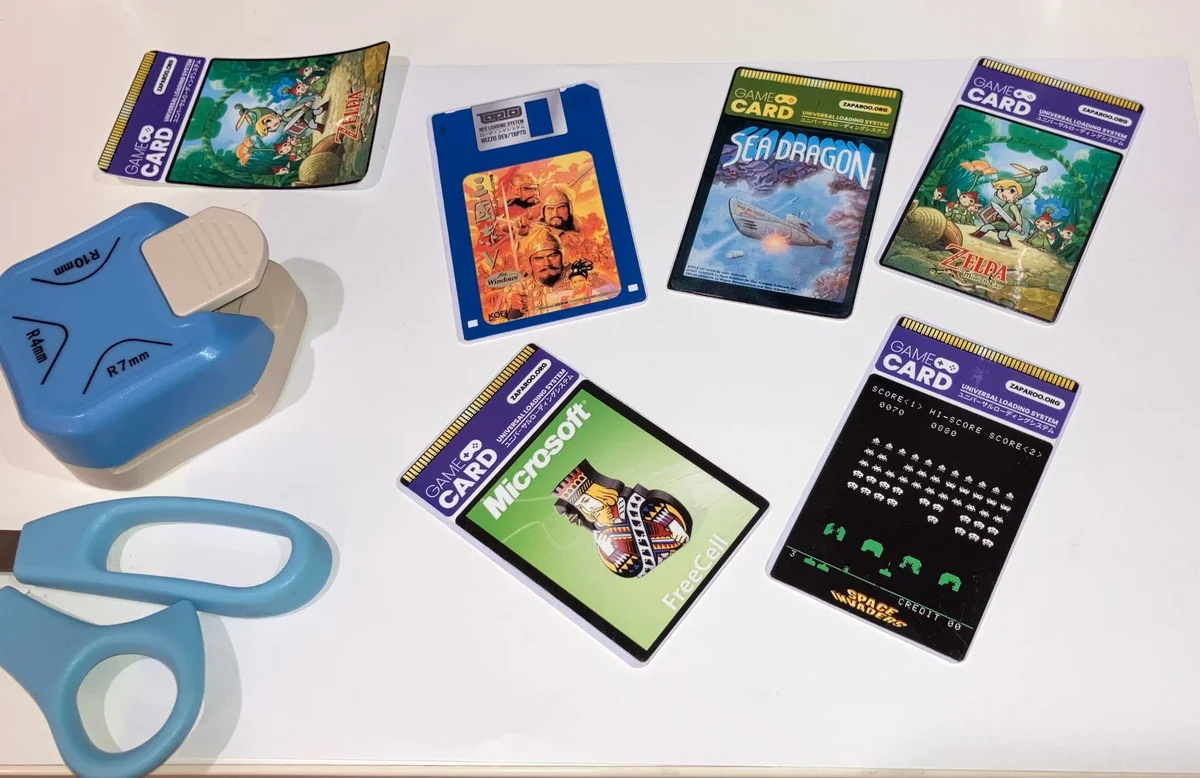
Hand-cut labels and corner-rounding tools shared by tangocat in Community Showcase #2.
Plotter cutters
For precision and batch work, a plotter cutter with print-and-cut capability can save a lot of time.
Community experience as of August 2026:
| Cutter | Verdict | Notes |
|---|---|---|
| Silhouette Portrait 4 | Recommended | Silhouette Studio has no subscription and handles the credit card label size well. Several members use it. |
| Siser cutters | Works | Good cut consistency and third-party software support. |
| Cricut | Not recommended | Several members, including the Zaparoo creator, hit problems with the hardware or software, and no reliable auto-cut workflow with Zaparoo Designer has been found. |
Die cutting
For high-volume production, die cutting produces the cleanest results. ArielAces in the community uses a roll-based system that prints and die-cuts labels in one pass, producing thousands of consistently sized labels.
Applying labels to cards
Alignment is the hardest part of the whole process. Here are techniques that work:
Manual application: Cut the label from the sheet first. Align the top edge of the label with the top edge of the card. Using a credit card or similar flat edge, slowly press the label down from top to bottom, pushing air out as you go. Vinyl sticker paper is slightly elastic, so you can steer it a little if it starts going off-center.
3D-printed alignment jigs can hold cards in place during label application. One example is this sticker applicator on Printables.
Double-sided approach: If your binder pages or sleeves are double-sided, consider only labeling the front of the card. Getting both sides aligned cleanly is significantly harder.
Print settings
- Set quality to "High" or "Photo" mode
- Select the correct paper type in your printer settings (glossy photo, matte, etc.)
- Print Designer PDFs at 100% or Actual size
- Disable Fit, Fit to page, Shrink oversized pages, and similar automatic scaling
- Print a test page on regular paper, then place a card over one label to verify its size before using sticker paper
- Let ink dry completely before handling or laminating
If a print shop is handling the PDF, explicitly ask them to print it without scaling.
Troubleshooting
The print smeared when I touched it. Inkjet ink on sticker paper needs protection. Let it dry fully, then laminate with cold self-adhesive sheets or apply a clear coat before cutting.
The card stopped scanning after I applied the label. Holographic and metallic vinyl can weaken the NFC signal, and heat lamination can damage the chip. Use plain vinyl or matte paper on that card and only ever cold-laminate.
The printed label is the wrong size. The PDF was scaled. Print at 100% or Actual size, turn off Fit to page and Shrink oversized pages, and test on plain paper against a card first.
My labels come out off-centre. Cut the label out first, align its top edge with the top edge of the card, and press down slowly from top to bottom. A 3D-printed jig helps with batches.
The corner rounder jams or tears. Adhesive builds up in the punch. Clean it out every few cuts.
Commercial printing
Professional printing is worth considering for 50+ identical labels or when you want premium finishes (metallic, spot gloss).
Export labels as PDF from Zaparoo Designer. Ask the printer what they need before ordering. Common requirements include:
- 300+ DPI resolution
- CMYK color mode instead of RGB, if the printer requires it
- 1-2mm bleed if required
- Fonts embedded or converted to outlines