Browse and Launch Games
Frontend starts at your library hub. From there you can browse categories, systems, games, favorites, recents, and folders. Games launch through Zaparoo Core, so launcher configuration and media paths follow your normal Zaparoo setup.
If covers, screenshots, or descriptions are missing, follow Add Artwork and Metadata before changing the browsing options.
Browse the library
Open a category to browse its systems, then select a system to browse its games. Selecting a system opens its games straight away. While browsing games, open the View menu and choose Go to... to jump by letter or bucket instead of paging through a long list, Random game to pick one for you, or Show to switch between All and Favorites. In list layout, Left and Right move a whole page.
The Other category holds launchable items that have no normal game file behind them, such as ROM-less MiSTer cores. You can launch them like any other game or write them to a token.
Arrange the Hub
The Hub is a grid you arrange yourself. Tiles can be categories, the built-in Resume, Favorites, Recently played, Update, and Settings actions, systems, folders, or games. To add a tile, choose Add to Hub from the options menu of any system, folder, or game, or use Add item... in the Hub's View menu; a folder that holds a single game is added as that game. A tile's options menu offers Move, plus Hide for categories and actions or Remove for tiles you added, and Reset layout in the View menu restores the default arrangement. The layout is stored under [[hub.items]] in frontend.toml; see configuration file.
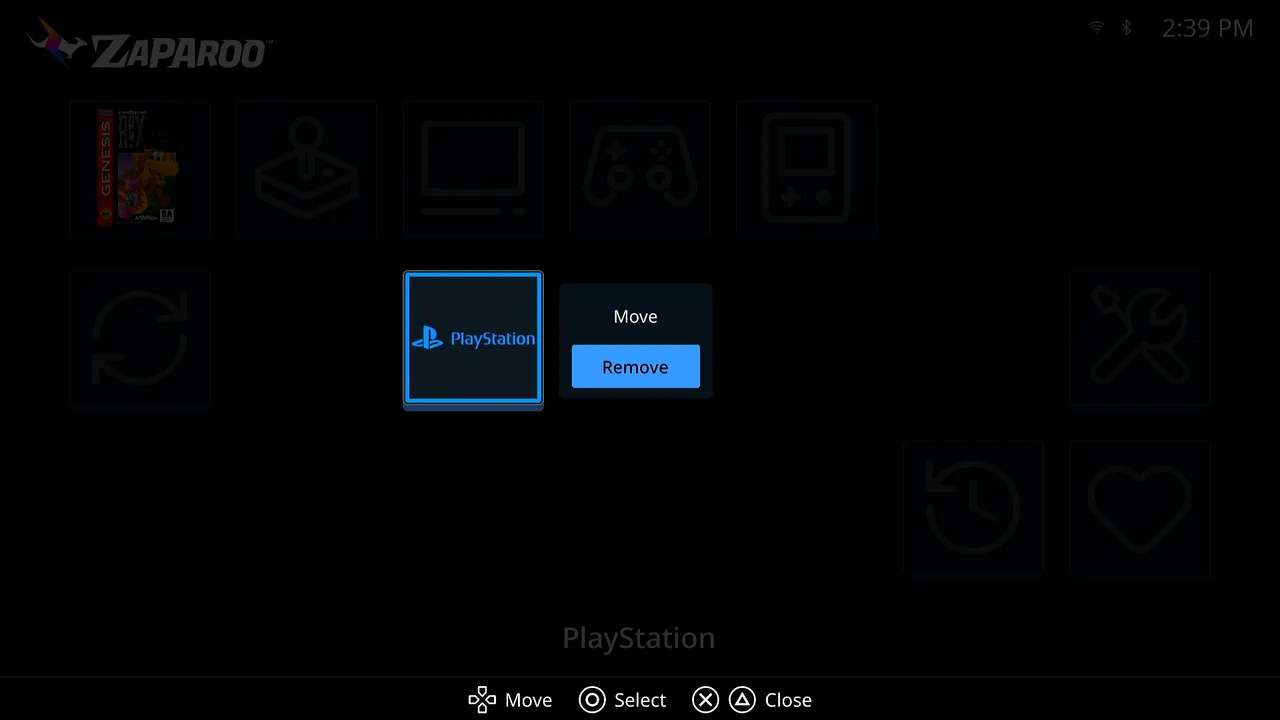
Use the options menu
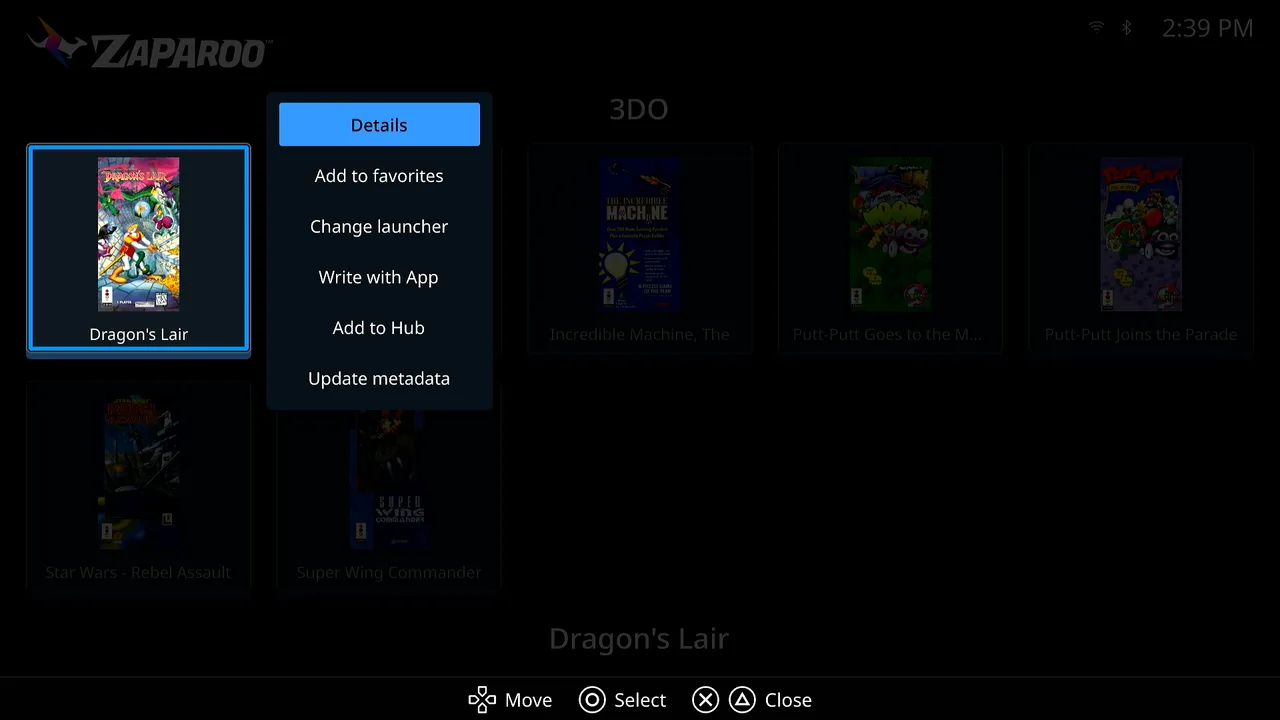
Open the options menu to manage the item you are viewing. Depending on whether you are on a category, a system, or a game, the menu can:
- Pick a Random game. Confirm on a game launches it, so there is no separate launch entry.
- Change launcher for a system, or override the launcher for one game.
- Launch system to boot a system's core with no game loaded.
- Update media database or Update metadata for that system or game.
- Hide a category or system (turn on Show hidden items in Settings to unhide it).
- Add to Hub.
- Show Details, or add a game to favorites.
- Write to NFC token on a connected reader, or Write with App, which shows a code to scan with the Zaparoo App.
- Discover alt. versions for Arcade games.
See Add Artwork and Metadata for the difference between updating the media database and updating metadata.
Favorites
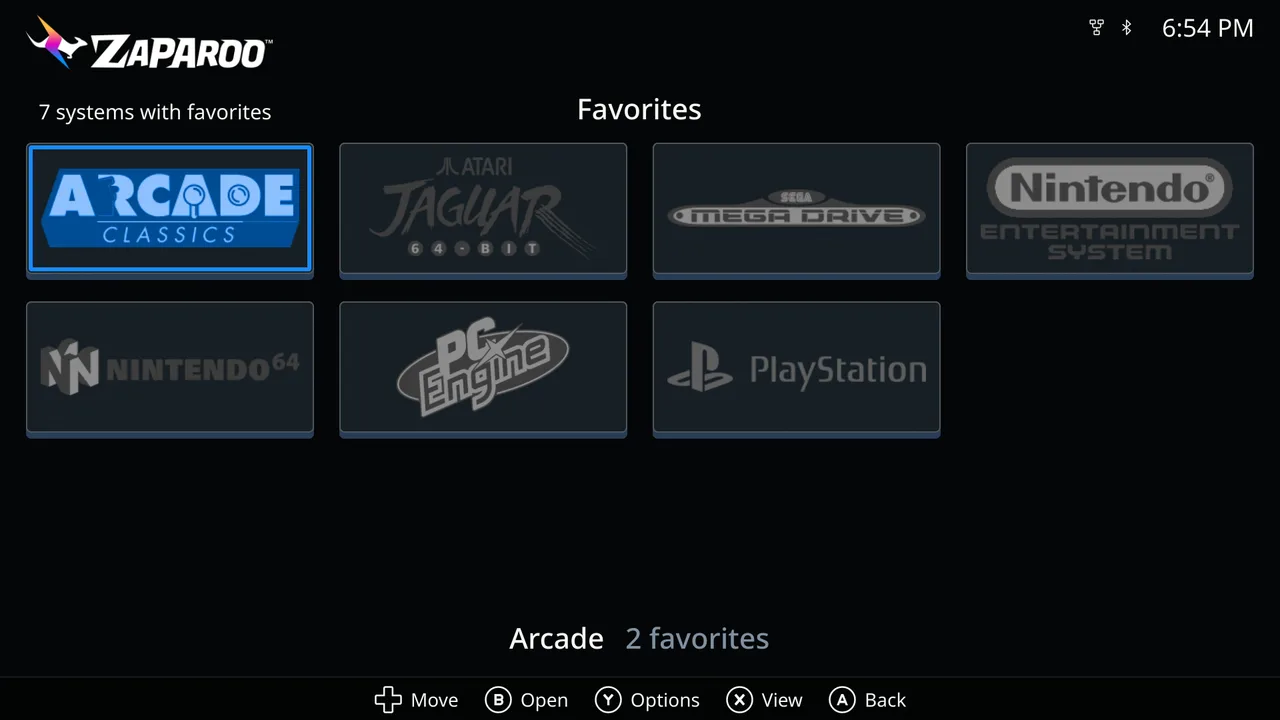
Favorites live on the Hub and in Show > Favorites while browsing. In the favorites view, the View menu can Sort by default order or A-Z, Group by system, or pick a Random favorite. Favorite systems have their own screen as well.
Choose alternate MiSTer launchers
Open a system's options menu to choose any installed launcher that Core supports for that system. Alternate launchers include RetroAchievements, DB9, LLAPI, PWM, 80 MHz overclock, DualRAM, and Sinden variants. Depending on the system, you might see options such as DualRAMPSX, DB9SNES, LLAPINintendo64, SindenPSX, or RASNES. A game's options menu can also override the launcher for that one game.
RetroAchievements launchers also support a group preference. If you generally want a RetroAchievements core whenever one is installed, set this preference in Core's config.toml:
[launchers]
preference = ["RetroAchievements"]
Core then prefers an available RetroAchievements launcher and falls back to the normal launcher when no supported RetroAchievements core is installed for that system. Explicit token launchers and saved system or game overrides still take priority. See the MiSTer alternate launcher reference for the full launcher list and configuration details.
Change browsing options
Open Settings > Library > Browsing to change how the library appears:
- Systems layout and Games layout: a grid of covers or a detailed list. The games layout also covers Favorites and Recents.
- Preferred artwork: which imported image type Frontend asks Core for first.
- Show hidden items: shows hidden systems and categories so you can unhide them.
- Show original filenames: each file's real name, without the extension, instead of Core's cleaned-up title.
Related settings live elsewhere: system logo style and Reduce motion under Settings > Appearance, regional system names (Region) and Clock format under Settings > Language, and Mouse support under Settings > Controls.
When multiple games have the same display name, Frontend can show variant tags inline to help distinguish regions, versions, and other variants.
For custom system artwork, Hub icons, and display names, see Customize Frontend.
Controls
The default keyboard controls are:
| Action | Default keys |
|---|---|
| Move | Arrow keys |
| Select | Enter |
| Back | Escape or Backspace |
| Options menu | Tab |
| View menu | Space |
| Previous page | PageUp |
| Next page | PageDown |
MiSTer automatically maps your controller buttons to these keys: A selects, B goes back, X opens the options menu, Y opens the View menu, L and R change page, Select goes back, and Start opens help. You can swap the confirm and cancel buttons, or the options and view buttons, under Settings > Controls, and change the on-screen button icons with Button style.
Keyboard bindings can be changed in /media/fat/zaparoo/frontend.toml under [input.keyboard]; a list you provide replaces the default for that action.