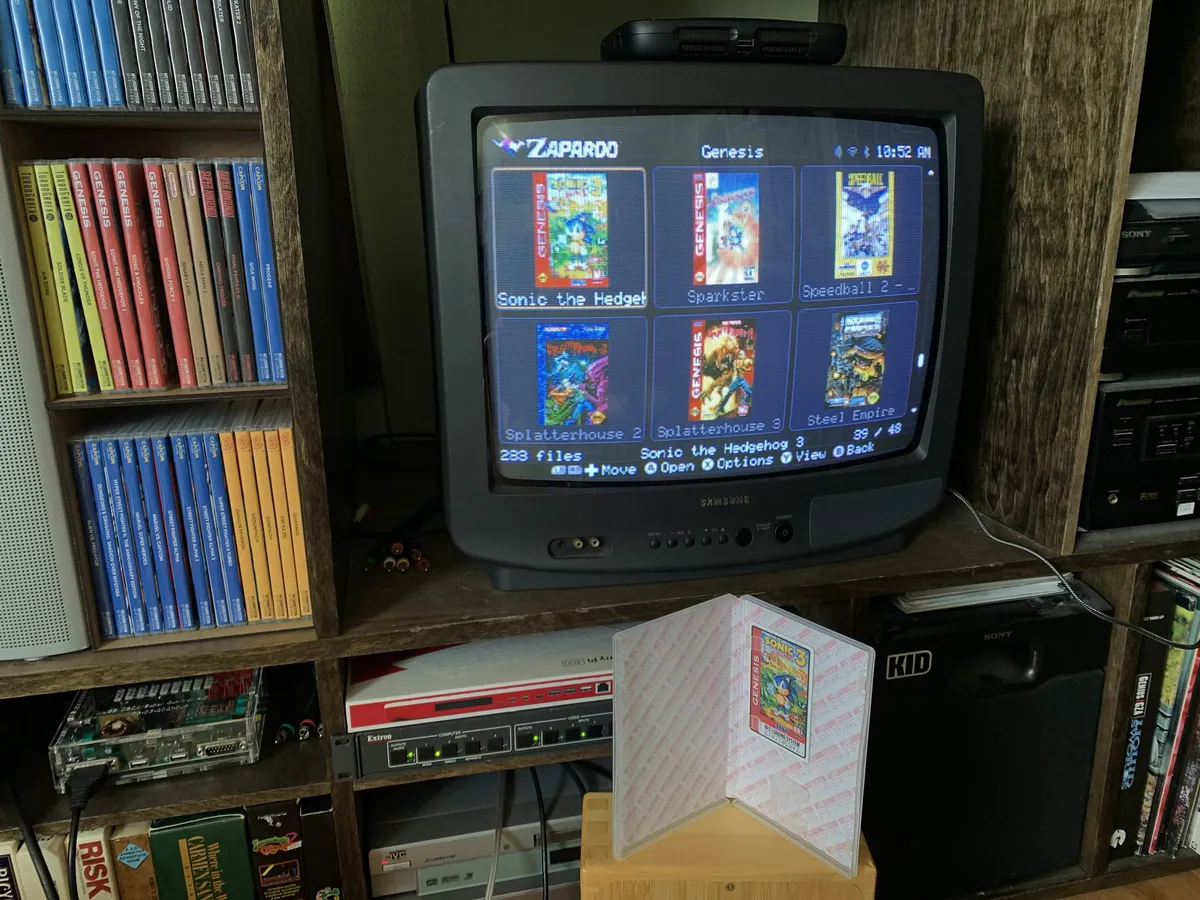
Zaparoo Frontend
Zaparoo Frontend is a TV and controller-friendly interface for browsing and launching your Zaparoo Core media library on MiSTer FPGA. It runs on the MiSTer display and uses Core as its backend, so your media scanning, launching, metadata, favorites, and token writing stay in Zaparoo Core.
Frontend does not replace physical tokens, the Zaparoo App, the Web UI, or the TUI. It gives Zaparoo a controller-friendly on-screen browser for users who want to browse artwork, launch games from the TV, or use Zaparoo on CRT setups.
Current features
Frontend currently supports:
- Browsing categories, systems, games, favorites, recents, and folders
- Resume Game action for jumping back into recent play history
- Grid and detailed list views
- Scraped artwork and metadata display
- Metadata scrape progress and re-scrape controls
- System-scoped media database updates and metadata scraping from options menus
- Launching games and media through Core
- Per-system launcher selection from the context menu
- Optional Arcade alternate version discovery
- NFC token writing for selected games
- Configurable screensaver
- Mouse support, including right-click context menus and mouse wheel paging
- Native MiSTer CRT output at 320×240 through an FPGA core
- TATE mode for vertical display setups
- MiSTer resolution selection
- Settings grouped into Display, Controls, Library, and Support pages
- Support log uploads from Settings
- Language selection and bundled translation catalogs, including Basque and Spanish
On first run, Frontend connects to Core locally. If your media database is empty, it prompts you to scan your games before browsing. You can update the media database later from the Settings screen.
Frontend can launch anything Core can already launch on MiSTer, including standard games, MGL files and supported special launchers. For platform-specific launcher details, see the MiSTer launcher documentation.
Install on MiSTer
Frontend requires Zaparoo Core v2.14.0 or newer.
On MiSTer, install or update Core from Update All. Update All can automatically configure Frontend in your MiSTer.ini file.
You can also install Frontend through MiSTer Companion, or install it manually from the release ZIP.
If you are using a SuperStation ONE or another MiSTer image that already includes Zaparoo, update Zaparoo Core before starting Frontend. Some images include old Core builds, such as v2.6.2, that do not support Frontend. If first-time setup stays on Preparing..., update Core, then reboot MiSTer or restart Frontend.
Manual install
For manual installation, download the release ZIP from GitHub Releases.
The ZIP contains a zaparoo folder with these files:
MiSTer_Zaparoofrontendmenu_zaparoo.rbf
Install Frontend:
-
Copy the
zaparoofolder to the root of your MiSTer SD card. -
Edit your
MiSTer.inifile and add this line under the[MiSTer]or[Menu]section:main=zaparoo/MiSTer_Zaparoo -
Start or reboot your MiSTer. Frontend will start automatically.
To disable or uninstall Frontend, remove the main=zaparoo/MiSTer_Zaparoo line from MiSTer.ini to return to the stock MiSTer menu.
Display modes
Frontend has display options for CRT and vertical setups.
Enable CRT mode
If you use Frontend on a CRT, enable CRT mode in the MiSTer OSD. CRT output can work without this setting, but the UI will use the wrong layout and fonts.
- Press the menu button or
F12to open the OSD. - Press right to move to the next OSD page, then open Video.
- Set CRT mode to On.
CRT mode enables the pixel fonts and tighter layouts designed for 240p output.
Enable TATE mode
TATE mode rotates Frontend for vertical display setups, such as arcade cabinets or MiSTer displays mounted for vertical games.
Open Settings, then set Orientation to the clockwise or counter-clockwise option that matches your display.
Change MiSTer resolution
On MiSTer, open Settings and change Resolution when you need a fixed output mode instead of the default Frontend video settings. Frontend includes HD options plus larger modes such as 1920x1200, 1920x1440, 2048x1536, and 2560x1440.
Scraping metadata
Frontend shows artwork and metadata after Core imports compatible gamelist.xml files. There are three supported ways to get metadata onto your MiSTer so far.
Boss's Basic Batch
Boss's Basic Batch is an opinionated metadata and artwork pack from BossRighteous, who created Zaparoo Core's scraper system. It includes image dumps and gamelist.xml files mapped to Zaparoo title slugs for known ROM sets.
To use it, download the ZIP and extract it into your MiSTer games directory. The release notes also mention that Arcade contents need to be moved to /media/fat/_Arcade, where MiSTer's .mra files live.
This option works well if your ROM names match the pack and you want a ready-made metadata set. It may not match custom naming, ROM hacks, or unusual library layouts.
ZapScraper in MiSTer Companion
MiSTer Companion v4.4.0 adds ZapScraper in Offline Mode. ZapScraper can scrape artwork for Zaparoo Frontend directly to a selected MiSTer SD card, or to a custom local or network location on your PC.
ZapScraper has two output modes:
- Recalbox Mode creates a standard Recalbox-style
gamelist.xmlstructure. - Zaparoo Companion Mode creates output for Zaparoo Frontend and requires Zaparoo Core v2.13.0 or newer.
ZapScraper currently focuses on console and handheld ROM folders. PC and Arcade cores are planned for a later ZapScraper update.
Skraper
You can also use Skraper with a ScreenScraper account. Before you run a scrape, set Skraper to RecalBox mode so that it outputs the gamelist.xml files Core expects. Set the default image style to whatever you prefer. Skraper supports the game folder names that MiSTer uses, so you can point it directly at your SD card or a NAS share.
Import into Frontend
After using one of the methods above, open the Frontend Settings page and run Scrape metadata. Frontend will process the metadata in the background and reconcile it against Core's media database. Once it's done, you should start seeing images in the game browser.
Core pauses metadata scraping while media is running and resumes when playback stops. Frontend shows scrape progress by system when Core provides it.
Use Re-scrape existing when you want Core to refresh media that already has scraper metadata.
To update or scrape one system at a time, open a system's options menu and choose the media database or metadata scrape action for that system.
Upload support logs
Settings are grouped into Display, Controls, Library, and Support pages.
If you need help troubleshooting Frontend, open Settings, then Support, then Upload log file. Frontend uploads a support bundle and shows a link you can share in Discord or a GitHub issue.
The upload includes a support summary, the Frontend log tail, and the Core log tail when Core is reachable.
Controls
The default keyboard controls are:
| Action | Default keys |
|---|---|
| Move | Arrow keys |
| Select | Enter |
| Back | Escape |
| Options menu | Tab |
| Previous page | PageUp |
| Next page | PageDown |
MiSTer will automatically map your controller buttons to these keys.
Credits
A big thank you to Andrea Bogazzi, BossRighteous, and Tim Wilsie for creating Zaparoo Frontend with Wizzo.
Source and license
The Frontend source code is available under the PolyForm Noncommercial License 1.0.0. Non-commercial use is allowed under that license. For commercial licensing, contact legal@zaparoo.org.