Zaparoo Frontend v2.2.0: Decks, Background Music, and the Menu Row

Zaparoo Frontend v2.2.0 brings your collections into the MiSTer interface. Like, dislike, and save games for later, build decks without leaving the couch, and pin any of them to the Hub. There's also a background music player, background images, 12 screensaver styles, Bluetooth controller pairing, and a Menu row that puts each screen's actions in view.
Zaparoo Core v2.22.0 is out alongside it. It plays internet radio, chiptunes, and MIDI files, and music gets its own volume and picks up where it left off after a reboot. On MiSTer it can turn cheats on and off and force a save from a card, and many MiSTer launch problems are fixed.
Thanks to Andrea Bogazzi for this release's CRT mode improvements, to odelot for the RetroAchievements code now built into Zaparoo's MiSTer Main, and to Turner Monroe for fixing the dead processes Core left behind after Steam launches on Bazzite.
Download and update
On MiSTer, use Update All to update Frontend and Core together. If you install by hand, update both. Frontend now expects Core v2.22.0 or newer.
For a manual update, copy the whole zaparoo folder from the release ZIP, including modules/, so Frontend, MiSTer Main, and the menu core all come from the same bundle. See the manual install steps.
On Bazzite and ChimeraOS, the install script used to install the generic Linux build of Core, which opens non-Steam games behind the Steam UI in Gaming Mode. It now installs the right build, and updates keep it. If you installed with the script before, run it again.
Collections and decks
A game's options menu now opens with a row of four toggles: Favorite, Like, Dislike, and Play later. Press Up from the first row to reach them. Liking a game clears a dislike, and the reverse.
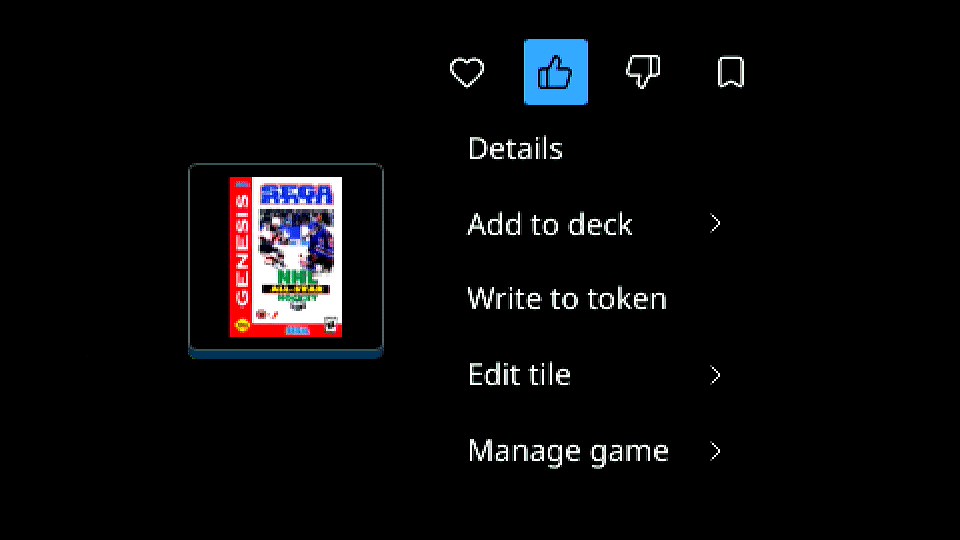
Liked games, Play later, and Disliked games each get a screen with the same sorting and grouping as Favorites, plus a new Recently added sort, which Play later opens with. A new Top played screen ranks your games by total play time.
The new Decks screen lists your decks, including read-only ones you saved from other people on Zaparoo Online, which show who made them. Select an item to play it. Add to deck in a game's options menu adds the game to a deck or starts a new one, and in your own decks you can reorder and remove items, rename the deck, and pick its cover.
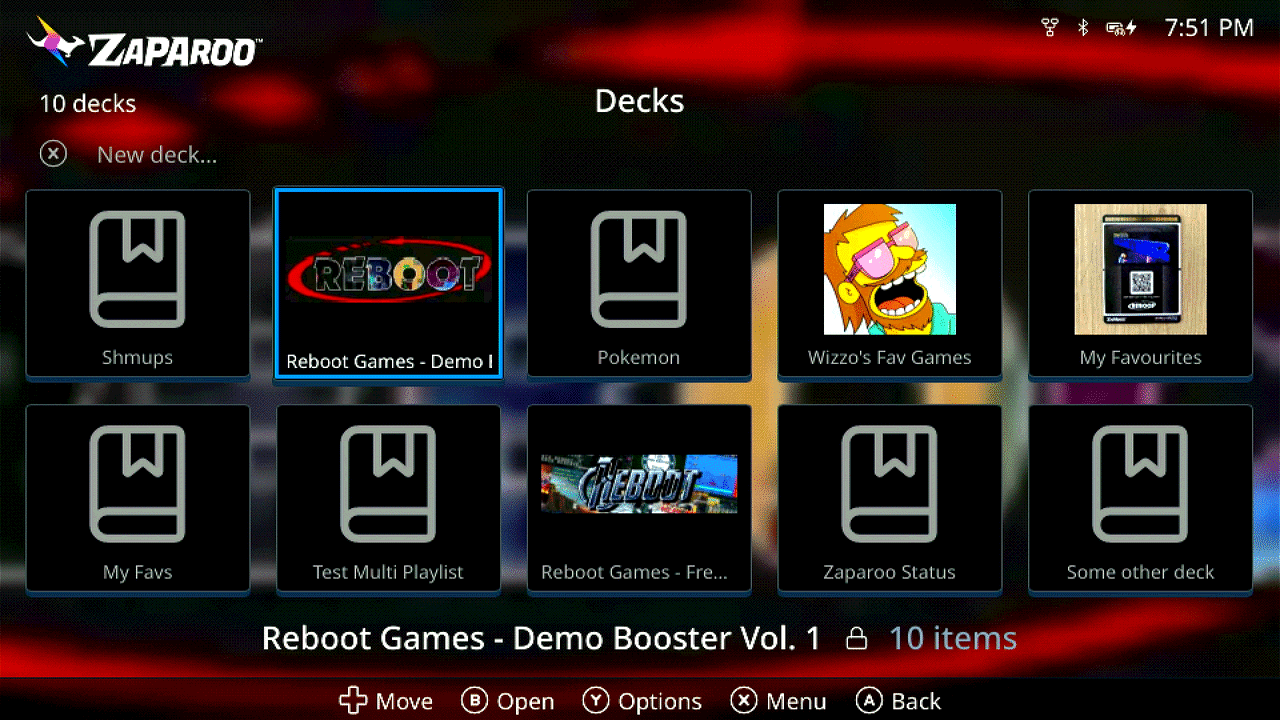
Background music
Settings > Background music is a full player for Core's background music, with the cover, title, artist, and album of what's playing, plus shuffle, repeat, skip (also on L and R), and volume. Browse music starts a folder from any track, and Add item... puts the player on the Hub.
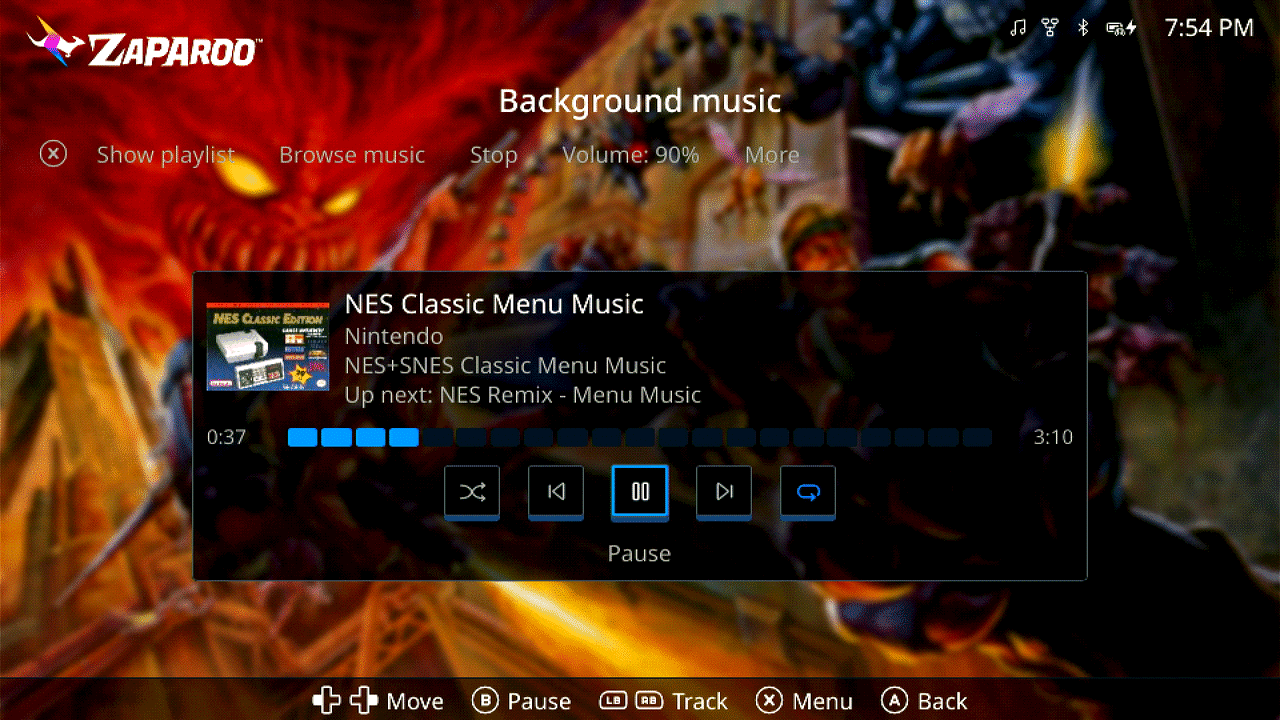
The player also has Core's Play on startup and Pause during games settings. See Background music.
Backgrounds, screensavers, and logo
Settings > Appearance > Background puts an image behind every screen: one file, or a folder for a random image each time the MiSTer starts. Game background instead shows the selected game's screenshot, fan art, title screen, or box art behind game lists. Blur and dimming are adjustable. See Background.
The screensaver used to be a bouncing logo or clock. Settings > Appearance > Screensaver now has 12 styles: Bouncing, Spinning logo, System logos, Cover wall, Recent games, Paddle clock, Starfield, Flyby, Polygons, Snakes, Life, and Maze. The default, Random, picks a different one each time and skips styles that need more covers than you have. Bouncing can bounce the logo, the clock, or a recently played game's cover. The idle timeout, Start after, moved to the same page. See Screensaver.
Settings > Appearance > Top bar logo replaces the top bar's Zaparoo logo with your own image or hides it, and the screensaver follows. It's a supporter feature that needs Zaparoo Pro from the App or a Warp subscription, on a device linked to your account. See Top bar logo.
The Menu row
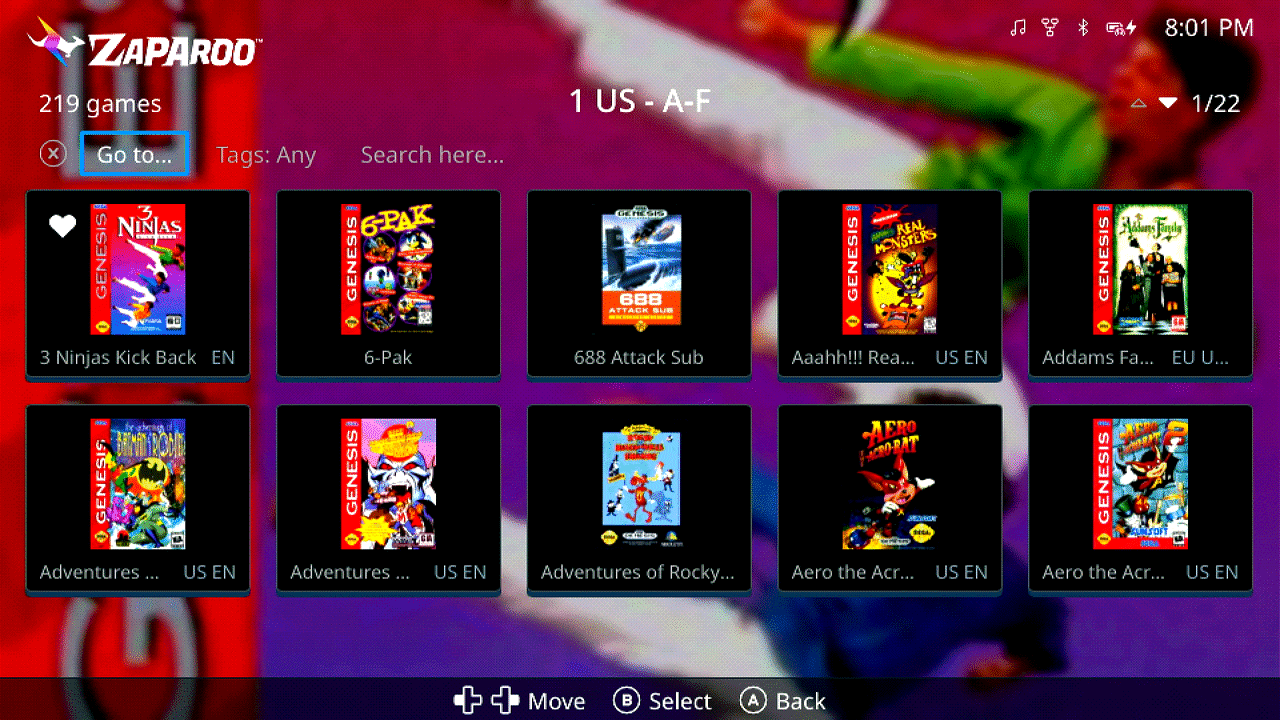
Many of Frontend's features lived in the old View menu, which stayed hidden until you opened it, so plenty of people never found them. Each screen now shows its actions in a row under the title, such as Go to, Tags, and Search here in a system, or Sort and Random game in Favorites.
The View button is now the Menu button and moves onto the row. At 240p, or with Settings > Appearance > Show Menu row off, it opens a list as before.
Controllers and remotes
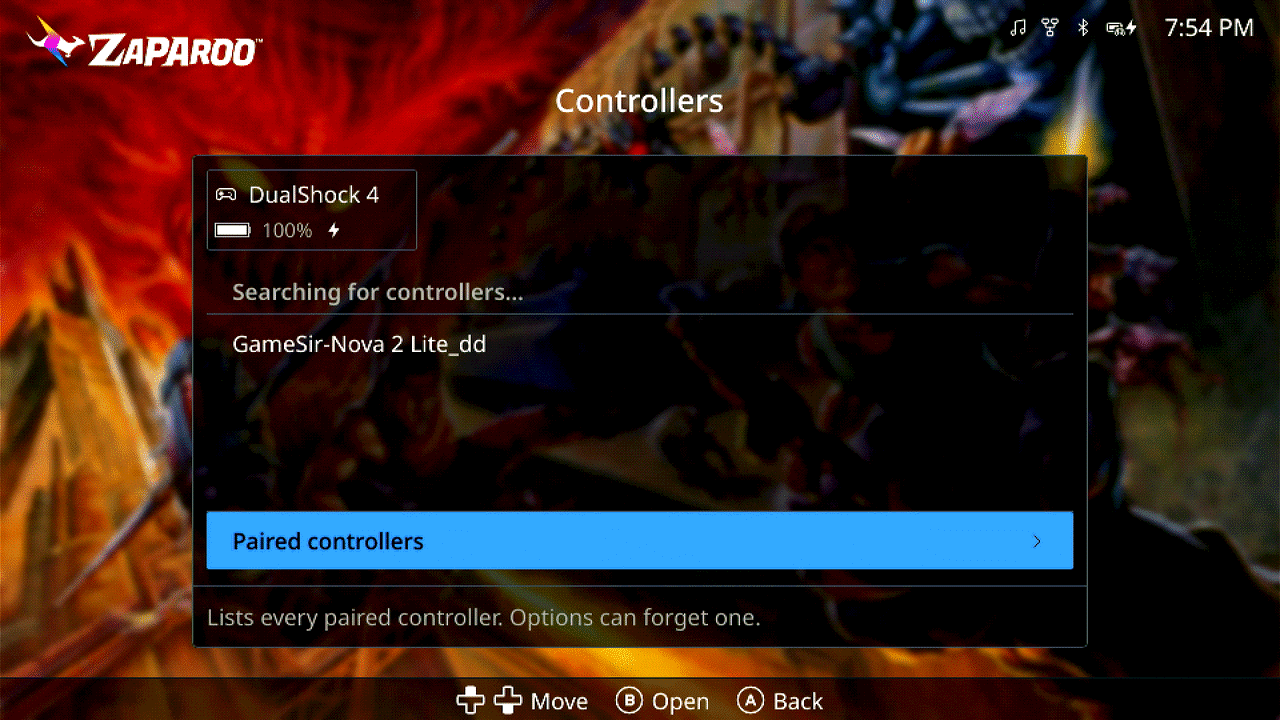
Settings > Controls > Controllers pairs Bluetooth controllers. Put one in pairing mode and select it when it appears, and it reconnects on its own after that. The page also shows connected controllers with battery and charge state, and Paired controllers forgets one. Wireless controllers show their battery in the top bar too. See Controllers and remotes.
With hdmi_cec=1 in MiSTer.ini, a TV remote now drives Frontend over HDMI-CEC. Exit goes back and Root Menu opens the OSD.
Search and the Hub
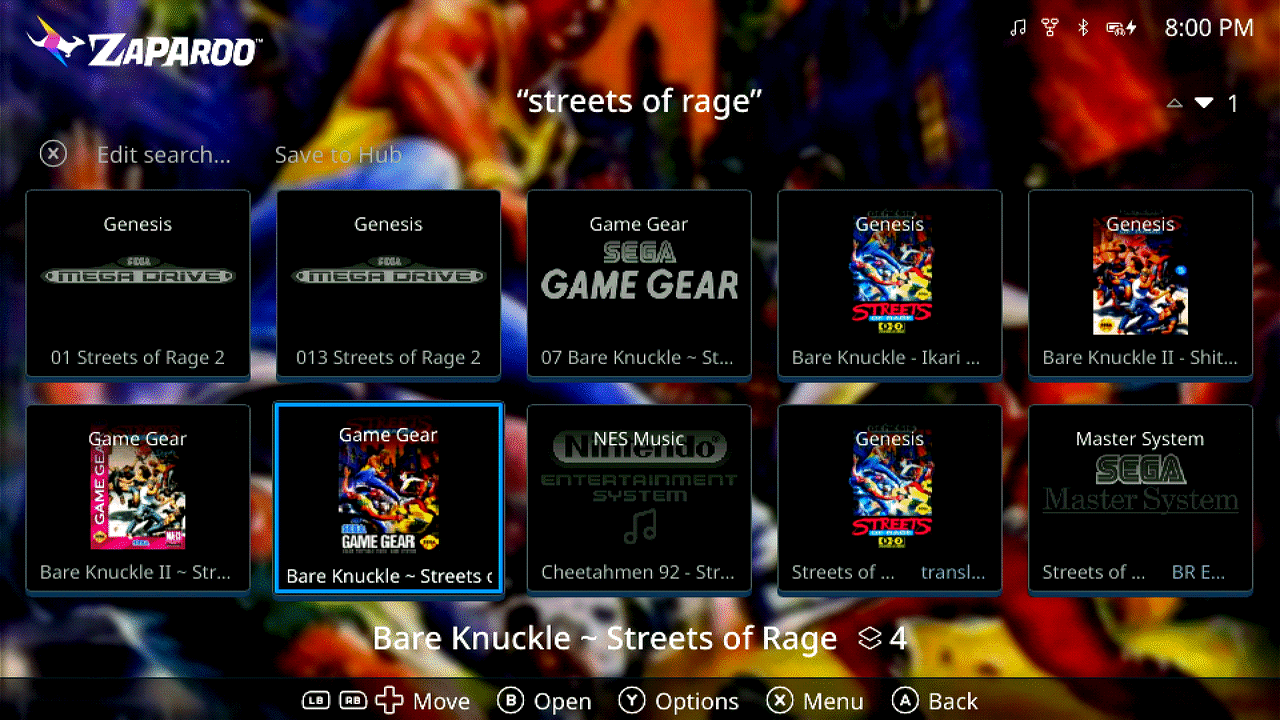
- Search results show each game once per system, with the number of versions next to its name. Choose version in the options menu picks a specific one.
- Search here... now works from a category, Favorites, and Favorite systems, as well as from a system or folder.
- Saving a search is now Save to Hub, and a saved search can be edited from its results.
- On MiSTer, Add item... > Custom folder... pins a folder from the SD card, such as
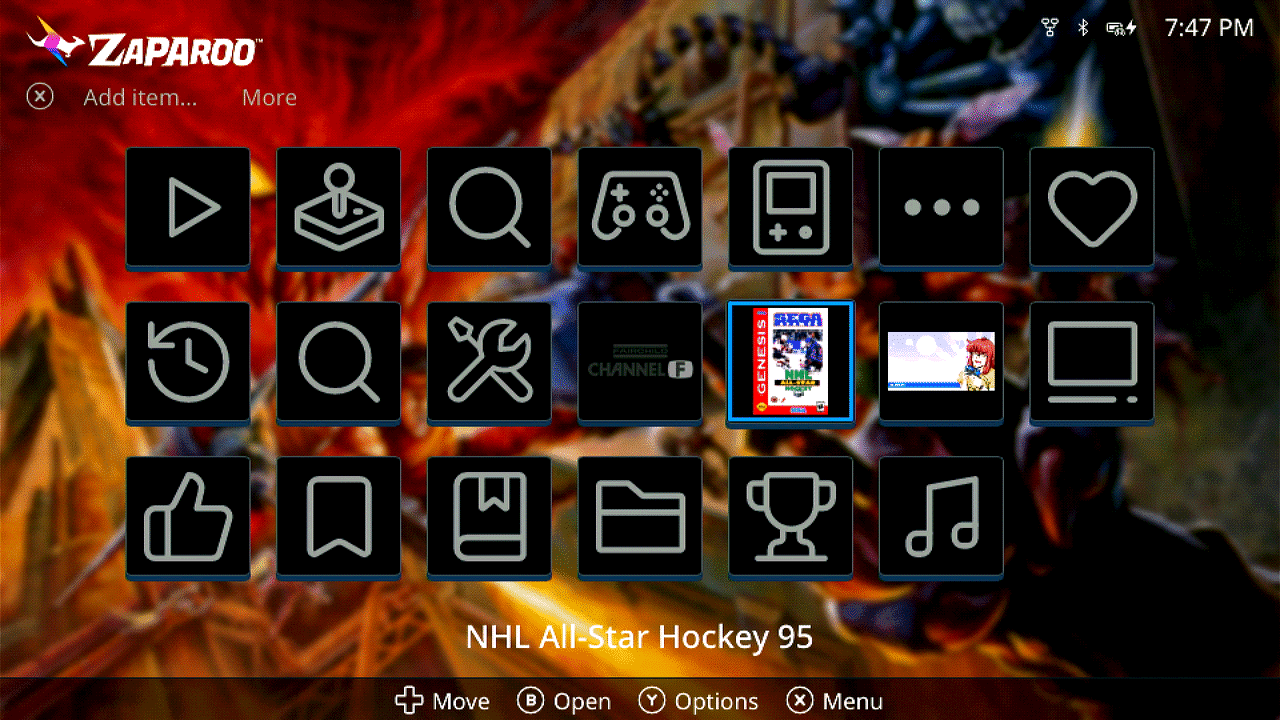
_RA_Coresor a folder of.mglfiles, as a Hub tile. See Pin a MiSTer menu folder. - Any Hub tile, built-in ones included, can be renamed with Rename tile... and given any image with Change tile icon.... On game, system, deck, and Resume tiles, these sit with Move tile and Remove from Hub on their own Edit tile page. Resume shows the game it continues.
RetroAchievements
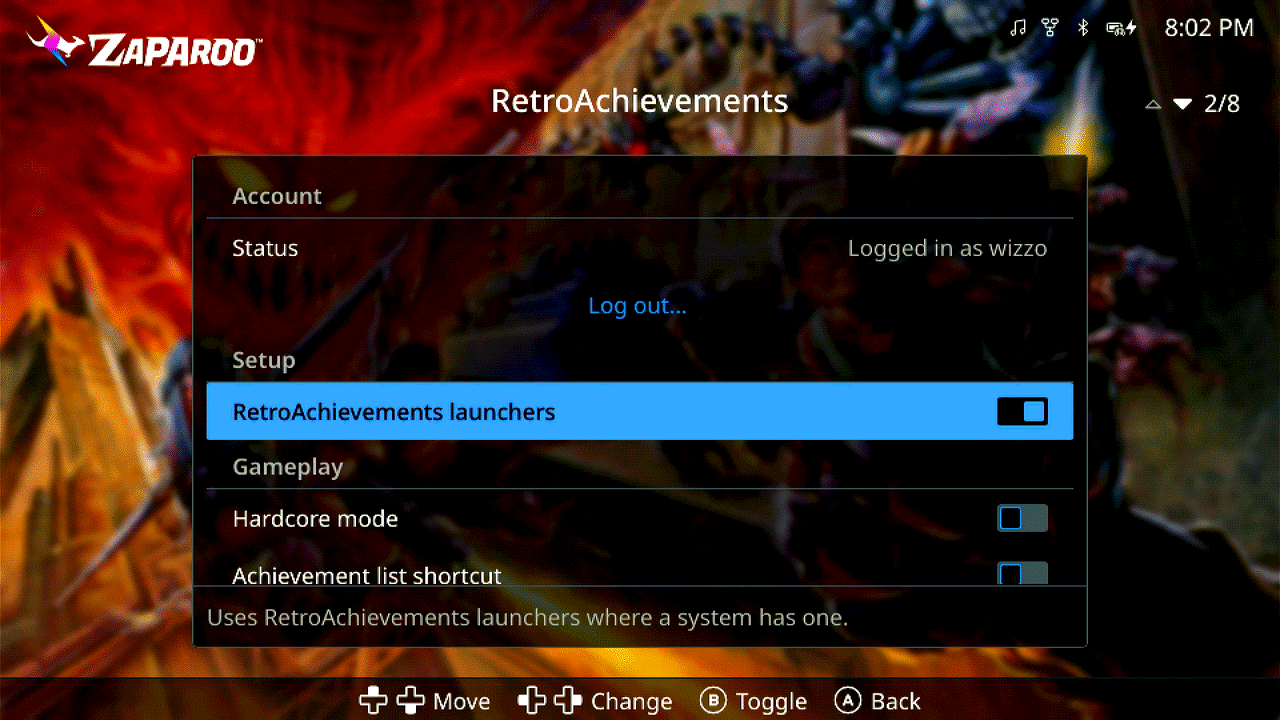
A new Settings > RetroAchievements page logs you in, turns the RetroAchievements launchers on, and sets hardcore mode and the achievement popups, without editing files. See RetroAchievements on MiSTer.
RetroAchievements cores now run on Zaparoo's MiSTer Main. Before, launching one switched to the separate RetroAchievements Main, so kiosk mode, auto-save, and card commands stopped working while you played. The achievement list opens with F6 or from the new Achievements row in the OSD. This is a port of the RetroAchievements Main by odelot, who also makes the cores.
Browsing
- Tags, in a system or on the Search screen, takes several values per category, so you can show platformers or shooters from the USA.
- Preferred artwork can be set for one system or folder, from a system's Manage system page or a folder's options menu. See Change the displayed artwork.
- Large folders, like a full NES set, reopen at your last game and jump to a letter much faster.
- Hold Back to go straight to the Hub, or press L1 and R1 together to open Go to... and jump to a letter.
- When a game has a manual, its Details panel has a Manual button to read it on screen.
- The new Settings > Browsing page has Left and Right in lists, to step through a game's images in the detailed list instead of changing page, and Show tags, to hide region and revision tags.
- Settings > Library > Launcher preference sets Core's launcher preference from Frontend.
- Settings > Appearance > Show button hints hides the help bar.
- 132 more systems have logos.
- Discover alt. versions also finds games under
_Arcade Patches. - On MiSTer, Settings > Language > MiSTer names.txt names systems from your MiSTer's
names.txt. See MiSTer names.txt.
CRT
Thanks to Andrea Bogazzi, CRT mode has sharper text and icons, tighter margins, and a new Text only layout for systems and games. Andrea also added width to Screen position: press Options on the test pattern, then Left and Right stretch the picture. See Enable CRT mode.
Frontend fixes
- A slow start no longer leaves Settings > Display offering only Automatic or loses your saved resolution.
- Page jumps reach the last entry in a list.
- Art for multi-disc games shows correctly, and changing the image type survives a cold boot.
- Games opened from a Hub tile come back to the right place.
- Game counts in the library no longer go missing.
- Covers fade in more smoothly on MiSTer.
- The Menu button deletes characters on the Search screen again.
- Writing the RetroAchievements config can no longer leave it half written.
- With kiosk mode on and Frontend turned off, the MiSTer menu shows its static again instead of a black screen.
Core v2.22.0
Music and radio
Core now plays internet radio. Launch a station's stream URL from a card, add ?slot=background to keep it playing behind your games, and the station's song titles come through as the current track. It handles Icecast and Shoutcast stations, .pls and .m3u links, and HLS streams. See Internet radio.
It also plays video game music and MIDI files. VGM, NSF, GBS, HES, KSS, and SPC files play directly, and the next and previous controls move through the tracks of a whole soundtrack in one file. MIDI plays through a built-in FM synth, or through a SoundFont you set with midi_soundfont.
music_volumesets the volume of music separately from scan sounds.music_autoplayresumes your last background playlist when the device boots. It's on by default, and a playlist you stopped yourself stays stopped.- Folder playlists take a
systemargument, such as?system=Audio, to include only that system's files. - Music and radio are leveled to a similar loudness, using ReplayGain tags when a file has them. Turn it off with
normalize. - MP3, FLAC, and Ogg playback uses much less CPU on MiSTer.
Cheats and saves on MiSTer
**control has a new cheat action that turns a cheat on, off, or toggles it in the running game, or clears them all:
**control:cheat?name=Infinite Lives&mode=toggle
save_ram now works on MiSTer too, writing the core's save without opening the OSD. Both need the Zaparoo Main build from this release, and RetroAchievements hardcore mode blocks cheats.
Decks and library
- With Library sync on, decks you saved on Zaparoo Online appear on your devices as read-only decks.
- Deck covers can be set from a device and work without an account.
- Apple II
.wozand N64 64DD.ndddisk images launch on MiSTer. image_dirsets where downloaded artwork and the thumbnail cache are stored, such as a USB drive, andthumb_cache_max_mbsets the cache's size limit. After updating, Core moves existing images into the new defaultimagesfolder once.
Core fixes
On MiSTer:
- MiSTer loads the newest release of a core instead of an unstable build.
- RetroAchievements cores launch for systems that share a core.
- AmigaVision games, demos, and its home screen launch again, and launching the Amiga system loads
_Computer/Amiga.mgl. - Arcade Organizer entries and Operator plays show art and details.
- Art and details for multi-disc games follow the disc you launched.
- Search finds games by their full title.
Other fixes: folders with hidden subfolders no longer show short or empty pages, covers are no longer lost after a scrape or media database update (Core rebuilds its cover cache once after updating), write in a multi-step script gives a clearer error, background disk writes are reduced, and rejected remote connections are logged.
For developers
media.search can group results by title with groupBy: "title", returning a titleId and versionCount for each, and media.browse takes live: true to read a folder from disk and offset or anchorPath to start a page at a position. online.status reports a device's link state and account features, device.bluetooth.* searches for, pairs, and forgets Bluetooth devices on Linux, and controllers in device.status gain chargeState and displayName. settings and settings.update gain audioNormalize and audioMidiSoundFont. Core can also show its pickers, confirmations, and notices inside Frontend. See the API reference.
If something breaks or behaves differently from the last version, report it on our Discord, Frontend GitHub, or Core GitHub. Include your Frontend and Core versions, your display setup, and what you were doing. Settings > About > Upload log file gives you a support bundle to share.