Zaparoo Frontend v2.1.0: Search and Saved Searches

Zaparoo Frontend v2.1.0 is the first feature release on the rebuilt MiSTer interface. You can search your whole library from the couch and keep a search as a tile on the Hub.
Zaparoo Core v2.20.0 is out alongside it. MiSTer scripts show up as a system you can browse and launch, and artwork installed by Update All is imported for you after each media database update.
Download and update
On MiSTer, use Update All to update Frontend and Core together. If you install by hand, update both. Frontend now expects Core v2.18.0 or newer, and hiding folders, choosing a disc, and Hub tiles that follow moved games need Core v2.20.0.
For a manual Frontend update, copy the complete zaparoo folder from the release ZIP, including modules/, and keep Frontend, MiSTer Main, and the menu core from the same bundle together. Follow the manual install steps.
Search
There's a new Search tile on the Hub. Type part of a name on the on-screen keyboard and matching games show up beside it as you type. You can limit the search to one system, narrow it by tags like genre or year, and reopen a recent search from the list. A keyboard plugged into the MiSTer types directly.
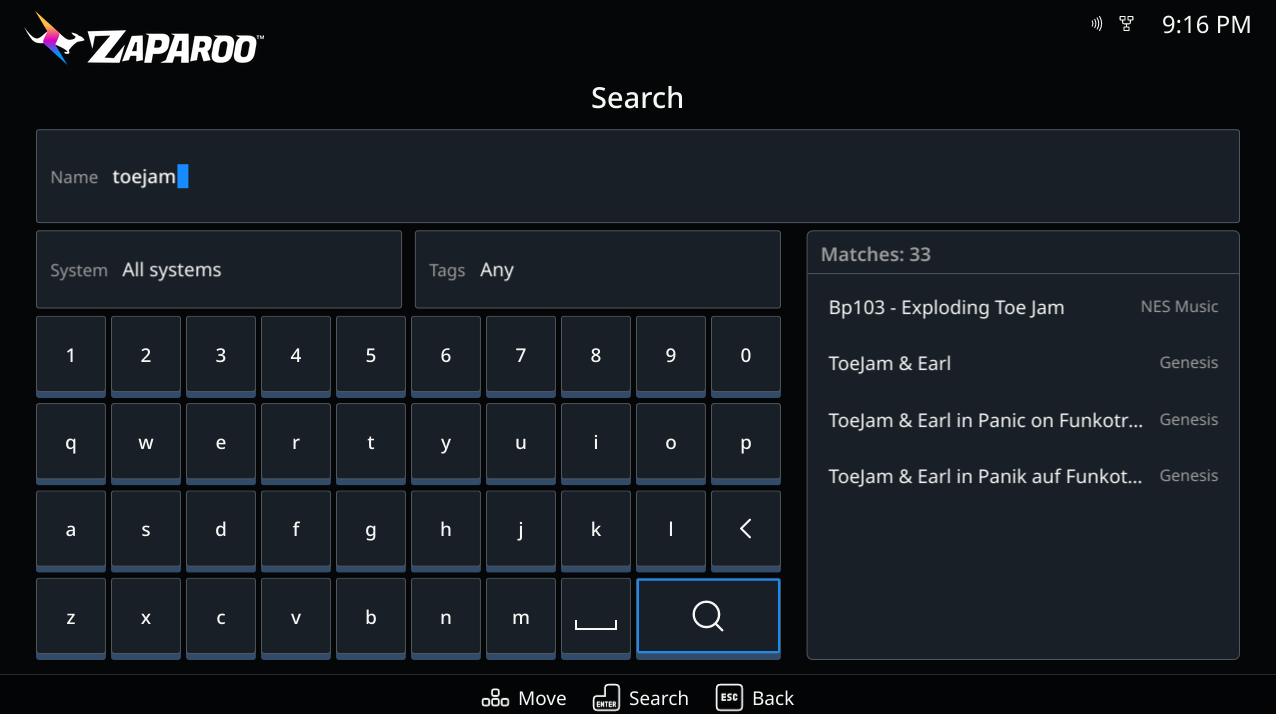
While browsing a system or folder, View > Search here... searches only that system or folder. See Search for the full controls.
More on the Hub
Open the View menu on a set of search results and choose Add to Hub to keep that search as a tile. A tile for "SNES RPGs" or "everything with Mario in the name" opens straight to its results. You can also write one by hand in frontend.toml, which lets a single tile cover several systems.
Games and folders you've added to the Hub, and the Resume tile, now keep working after your games move to another drive, such as from the SD card to USB. Frontend checks where each one lives after a media database update and fixes the tile and its cover. Add to Hub also reads Remove from Hub once an item is there, so you can't add the same thing twice.
A shorter options menu
The options menu now keeps the things you reach for most, like Details, favorites, and Write to token, and moves the rest to a Manage page: changing the launcher, adding to the Hub, hiding, and updating metadata. A game also shows the same menu wherever you find it, including on a Hub tile. See Use the options menu for where each action lives.
Smoother on a CRT
In CRT mode, Frontend now draws in step with the CRT's refresh, so moving around the menus is much smoother than in v2.0.0. Pages slide when you change them, and lists glide to follow the selection. This depends on the MiSTer Main and menu core that ship in the same release, so update all three together.
Testing on a CRT also turned up layout problems that are fixed here: the Settings tiles being pushed off screen at 240p when the games layout is a list, an empty band above the help bar, and a position rail too narrow for 0-9.
Multi-disc games and folders
A folder holding the discs of one game is now a single row named for the game. Selecting it launches the disc you played last, and Choose disc in its options menu lists the others.
Folders can be hidden too. Choose Hide from a folder's options menu and it leaves browsing, search, and random picks, which is handy for something like _Arcade/_alternatives. See Hide games for how to bring one back.
Artwork and metadata
- Update metadata and Update media database let you check several systems in one run.
- Update metadata on a single game now updates that game alone.
- Screenshots and title screens on the Details screen and in the list detail pane keep sharp pixel edges when they're scaled up.
- Changing Preferred artwork applies immediately, without a restart.
The filter in a system's View menu is now called Tags. Choices apply as you make them, and the old Lists category is now Collections, which includes your decks alongside favorites, liked games, and games saved for later.
Zaparoo Online settings
Settings has a new Online page for your Zaparoo Online account. Link or unlink the MiSTer, switch each Online feature on or off, and manage cloud backups if you have Warp. See Zaparoo Online in the setup guide.
Languages
Simplified Chinese now displays every character, Traditional Chinese has its own translation, and every language Frontend offers covers the whole interface. Most of the newly filled text is machine translated and hasn't been reviewed by a native speaker yet. If something reads wrong in your language, tell us on Discord or open an issue on Frontend GitHub.
Frontend fixes
- Color scheme, language, interface layout, button swaps, and several other settings no longer reset after a MiSTer reboot.
- Hub tiles no longer stay blank after returning to the Hub, and covers come back after you exit a game.
- System logos and tile icons are drawn at their exact size, so they look sharper.
- Upload log file works again on MiSTer. It needs Update All or Downloader to have run once.
- Folder and file names with a dot in them, like
Dr. Slump, are no longer cut short when Show original filenames is on. - A
frontend.tomlwith a mistake in it no longer gets overwritten with defaults. Frontend tells you at startup and leaves the file alone. - Frontend no longer starts to a black screen on 1920x1200 displays or with
video_mode=12. I don't have a display that accepts those modes to see the picture on, so let us know how it goes if you do.
Core v2.20.0
MiSTer scripts as a system
On MiSTer, the scripts in /media/fat/Scripts are now a Scripts system. Update the media database and they appear in browse and search, ready to launch from Frontend or write to a token. A script launched this way runs on screen, the same as from MiSTer's own Scripts menu.
Scripts are left out of **launch.random:all and other launches that span every system, so a random game token won't run one. The mister.script command is still there for passing arguments or running a script hidden. See Scripts.
Update All artwork imports itself
If you use Update All's artwork and manual databases, Core now imports them when a media database update finishes. It fills in games that have no artwork or details yet and leaves everything else alone, so nothing you've already imported is replaced. When neither your packs nor your games have changed, it skips the work.
It also reads screenshot and title-screen packs installed in the same format. To replace existing artwork, run the mister-docs source yourself with Replace existing turned on. See mister-docs.
Library and launch changes
- Folder artwork can go in
media/folders/, apart from your game artwork. See media-folder. - On Android, Library sync no longer uploads every installed app. Games stay under the Android system and other apps move to Applications, which isn't synced. Update the media database to move apps you've already indexed.
- A
<system>/<path>launch now finds files with no extension and files inside a ZIP.
There are also fixes for tags from a metadata import being dropped by the next media database update, cancelled imports being reported as failed, a system showing as empty when it had a hidden folder inside another hidden folder, and history entries with no name when a game was launched by a path in different letter case.
For developers
The API has a new device namespace. device.status reports battery, network, storage, displays, and controllers for the machine Core runs on, and device.power.* can reboot, shut down, or suspend it where the platform allows. MiSTer supports reboot only. To report whether the device is online, Core makes small requests to public connectivity check addresses while a client is connected, and internet_check turns that off. See the API reference.
If something breaks or behaves differently from the last version, report it on our Discord, Frontend GitHub, or Core GitHub. Include your Frontend and Core versions, your display setup, and what you were doing. Settings > About > Upload log file gives you a support bundle to share.