Zaparoo App v2.0.0: Phone, Tablet and Desktop Layouts

Zaparoo App v2.0.0 is a redesign built from the ground up, and it's rolling out now as an automatic update to everyone who already has the App on iPhone or Android.
The original design was made with Tim Wilsie when the App was a wireless reader and a way to write tags. Two years later it does far more, and I'd been squeezing each new feature into layouts that were never meant for it. Tablets and big screens technically worked, but it was the phone layout stretched across a larger screen, and it wasn't great. v2 starts over with the design from Zaparoo Online, which I'd already proven with the same data, and gives phones, tablets, and desktop-sized windows their own layouts.
The phone layout is still reader-first. Tablets and larger screens are for managing and browsing your media, with every feature still there. The update works on phones and Android tablets today. A store release for native iPad and a later Core release that carries v2 in the Web UI come after, and both are covered at the end.
The highlights:
- A new look: the Zaparoo Online design and a light theme that follows your phone
- Three layouts: made for phones, tablets, and desktop-sized windows
- Library and media: every detail links to more games, plus likes, Recently played, Top played, and playback controls
- A customizable Zap page: move widgets around and add your own buttons and rows
- Full screen: hide the navigation and use a tablet as a display
- ZapScript and writing tags: a step-by-step builder, and writes happen where you tapped
Download
The update comes to the App you already have. If you're setting up a new phone, the stores are linked below.
Before you update
- How it arrives: the App downloads v2 in the background when you open it and switches over the next time you fully close and reopen it. The store listings don't change today.
- Your phone's theme: the App used to be dark only. It now follows your phone, so if your phone is in light mode, the App comes up light. Change it under Settings > Accessibility > Appearance.
- Core version: Recently played and Top played need Core v2.12.0 or newer. Liked, Disliked, Play later, and deck rows on the Zap page need Core v2.18.0 or newer, same as v1.15.0. Everything else works with the Core you have.
A new look
The new design is meant to feel physical without getting skeuomorphic, because I'm not an artist and couldn't pull that off. The big chunky buttons you can push down are the centerpiece, and most other components have the same kind of depth so they fit together. It's the same design as Zaparoo Online, and it's built for good contrast so it stays readable.
- Light theme. Choose System, Light, or Dark under Settings > Accessibility > Appearance. System is the default.
- Quick toggle. On tablets and larger screens, a sun or moon button at the bottom of the navigation switches between light and dark.
- Settings is regrouped into App, Device, and Support, with your device and media database status at the top.
One App, three layouts
The App picks a layout from the width of the screen or window. Every feature is on all three.
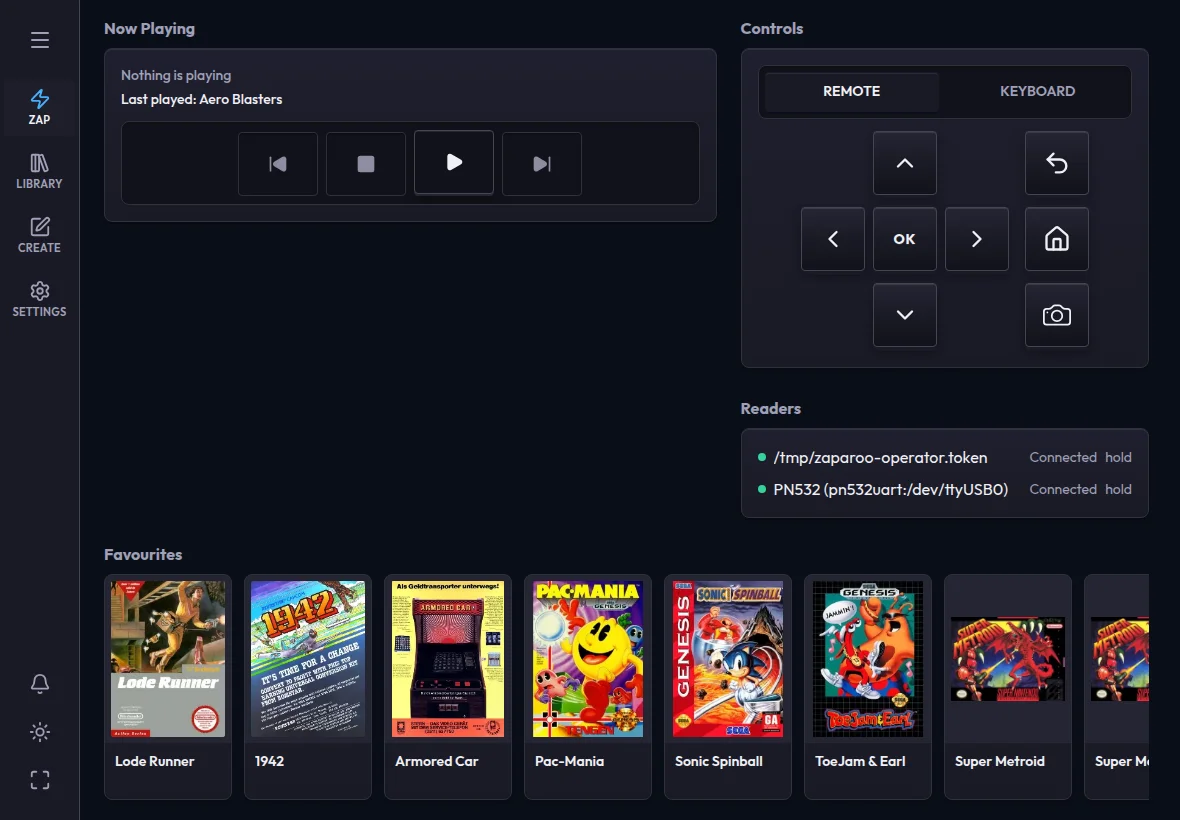
- Phone keeps the four tabs along the bottom: Zap, Library, Create, and Settings. Zap stays reader-first, with scanning, what's playing, and your readers close to your thumb.
- Tablet (about 760 pixels wide and up) swaps the tabs for a slim icon rail, and its menu button opens every page. Dialogs open in the middle of the screen and pages show where you are.
- Desktop (about 1280 pixels wide and up) adds a permanent sidebar listing every page, with your connected device at the bottom. You can collapse it back to the rail.
- Two columns from about 1024 pixels wide on Settings, Create, Library search, and the ZapScript editor.
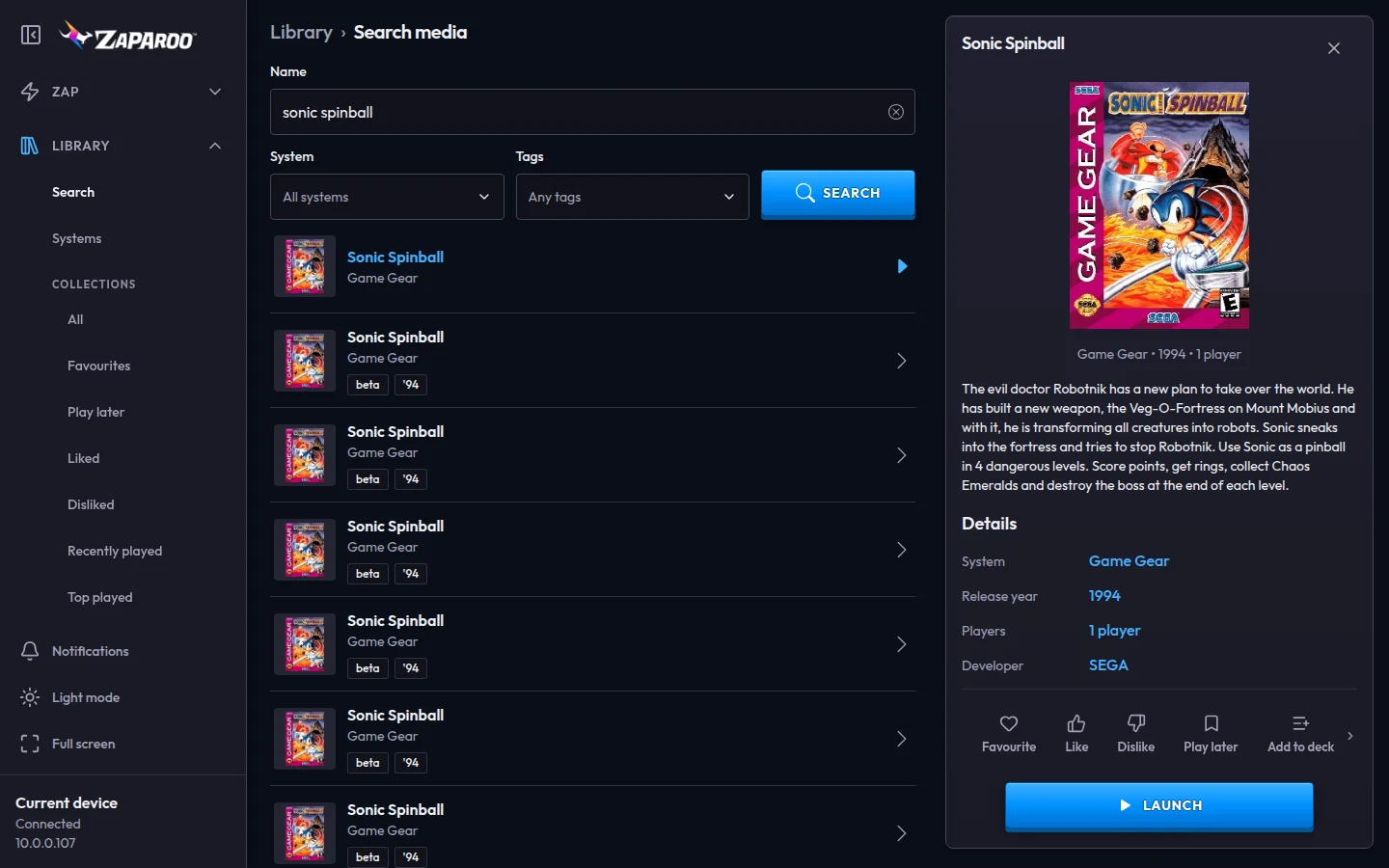
- A details pane beside the list from about 1100 pixels wide, instead of a sheet.
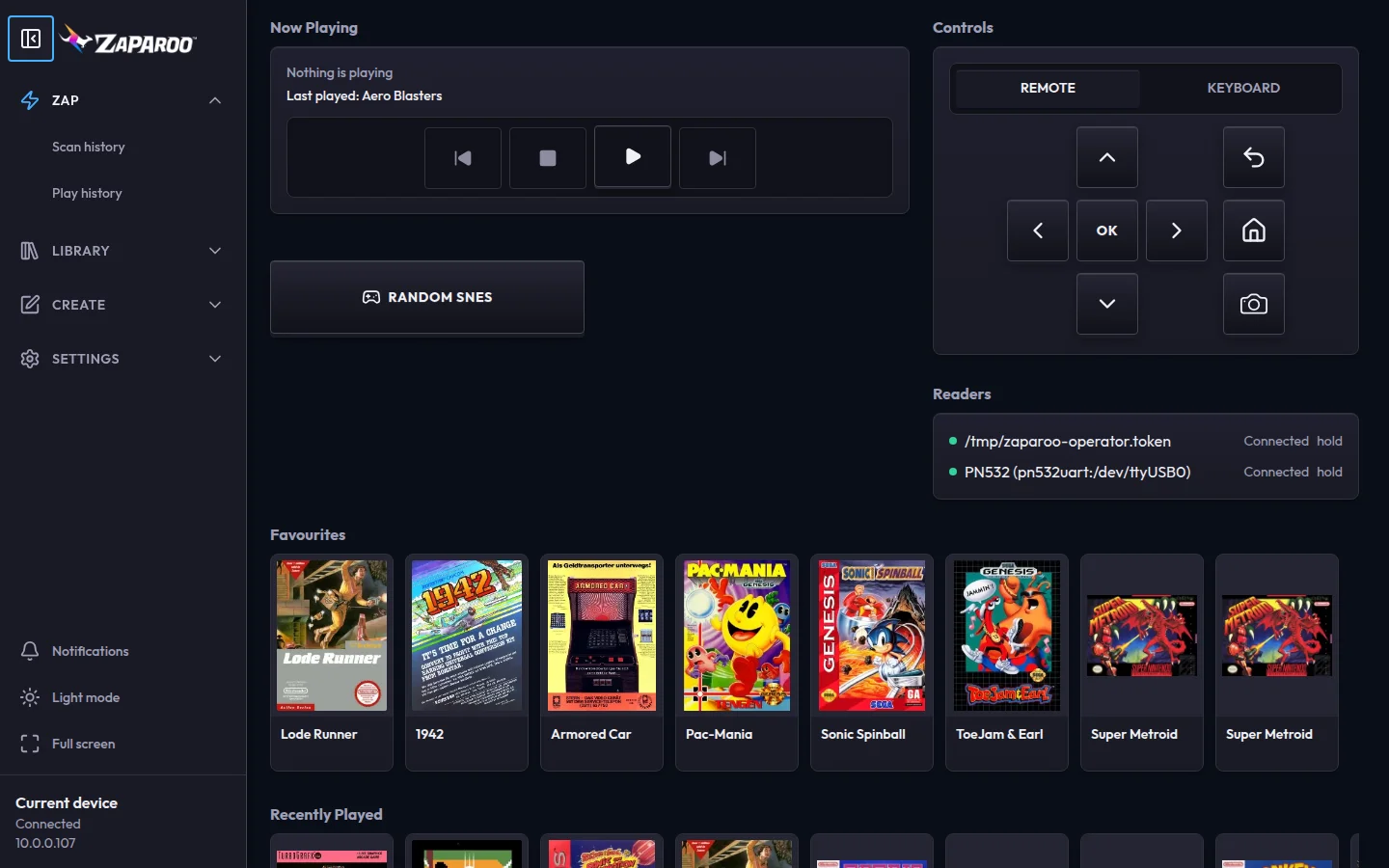
The tablet and desktop layouts are the newest and least proven part of this release. I've done my best, but it's a big job, and some of what I've set up won't hold up in real use. Expect them to keep changing, and tell me what doesn't work.
Library and media
This is the part I'd try first. A game's details tie into the rest of your library, and the pages link into each other so you can keep drilling down.
- Details are links. The system, release year, players, developer, publisher, genre, and region each open a search for that value, and Back returns to the game you came from.
- Favorite, like, dislike, or play later from a game's details, with a collection for each in the Library. Likes, dislikes, and play later came in v1.15.0.
- Recently played and Top played are new collections. Top played shows how long you've spent in each game. Both need Core v2.12.0 or newer.
- Now playing shows the controls that what's playing supports, such as pause and resume, and previous and next. A playlist shows its queue and you can tap an item to jump to it. When nothing is playing, Play starts the last game again.
- History has Scans and Played tabs, and there are full Scan history and Play history pages.
I'd like to keep evolving this, so feedback on what's missing or in the way is the most useful thing you can send me.
Make the Zap page yours
Select Customize under the Zap page, or open Settings > Customize Zap page, to rearrange it. It works on every layout, phones included, and it's free.
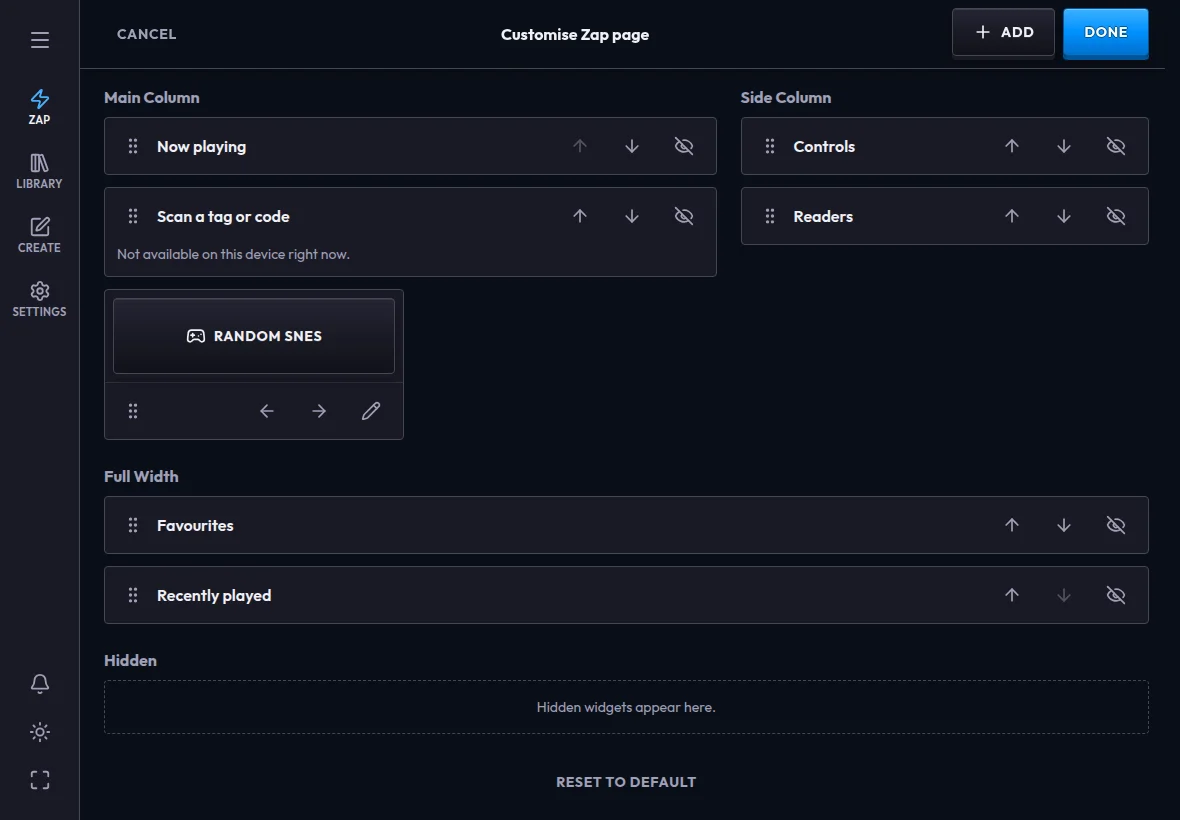
- Move or hide widgets. Now playing, Scan, Controls, Readers, Favorites, and Recently played can go in the main column, the side column, the full width, or be hidden. Drag them, or use the arrow buttons or the keyboard.
- Custom buttons run any ZapScript when pressed. Pick a size, an icon, and a style, and optionally have it ask before running.
- Rows of games for Top played, Liked, Disliked, Play later, or any of your decks.
- Saved per device. Each Core keeps its own layout. You can copy one from another device or reset to the default.
Full screen
On tablets and larger screens, Full screen at the bottom of the rail or sidebar hides the App's navigation, so the Zap page can sit next to your setup as a display. Press the button in the bottom-left corner, or Escape, to bring the navigation back. The App remembers your choice across restarts.
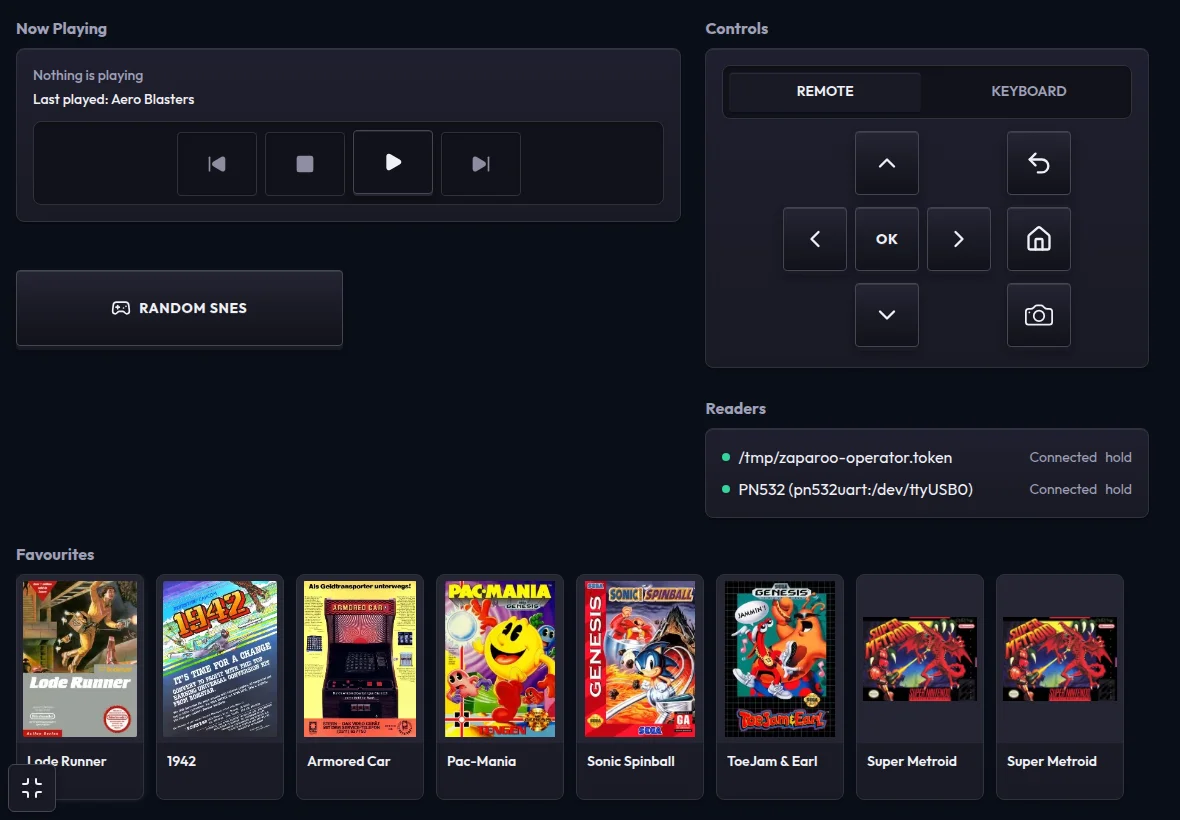
It only hides the App's own navigation. It doesn't hide your device's status bar or keep the screen awake. Turn on Keep screen on under Settings > Readers for that.
ZapScript and writing tags
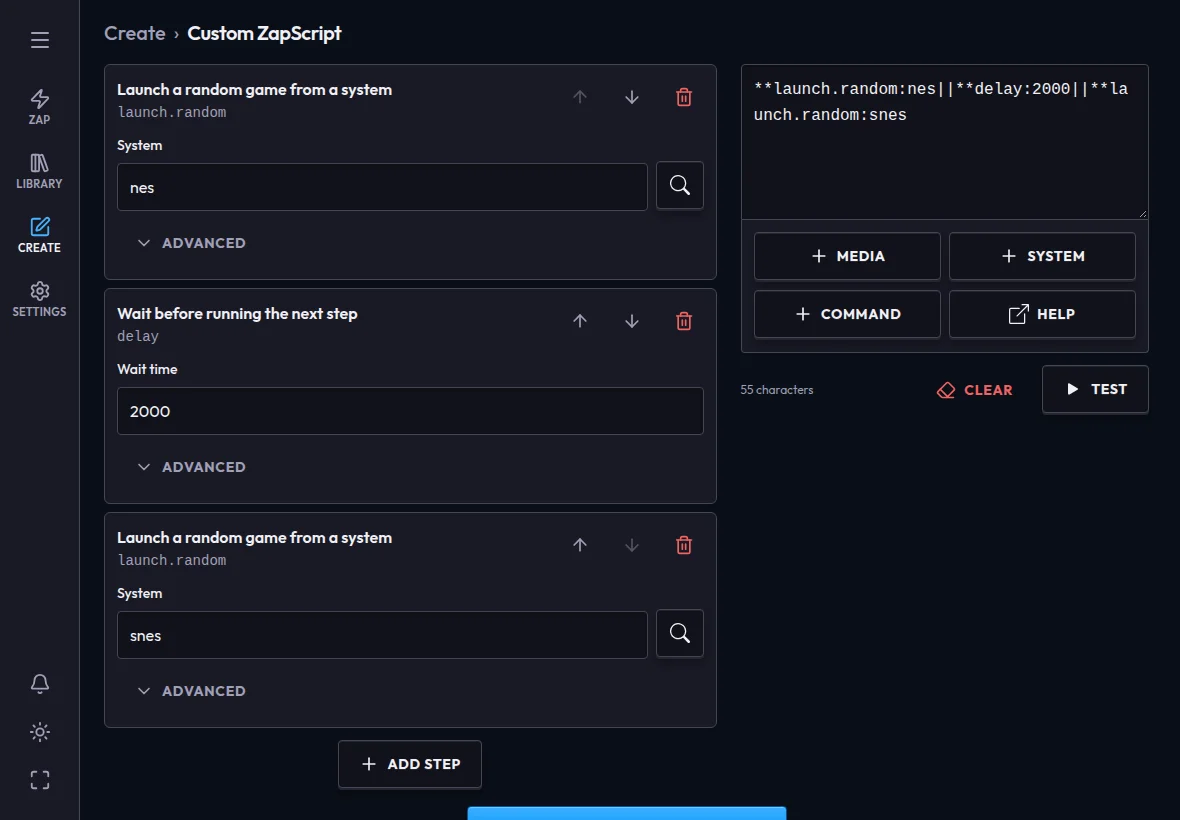
- A step-by-step builder. Custom ZapScript has Steps and Text views. Each step is a form with a plain description of the command, and anything the builder doesn't recognize stays as you wrote it. On wide screens both views sit side by side.
- Pickers and a command list. Search buttons fill in media, systems, and launchers, and Command opens a searchable list of commands grouped by what they do.
- Writes happen where you tapped. The button you pressed turns into Cancel while it waits for a tag, and offers Retry if the write fails.
- Capture a tag ID in the mapping editor by scanning the tag with NFC or the camera.
What moved
- Choosing a device is one sheet now, replacing the address card and network scan dialog in Settings. Open it from the device name at the top of the Zap page or from Settings to switch devices, Add device manually, or Manage devices.
- Writing a tag no longer opens a "hold your tag" dialog. The button you pressed waits for the tag instead.
- Scan History is now History, with a Played tab beside Scans.
- Run on Custom ZapScript is now Test.
What's next
- Store release. A full release on the App Store and Google Play follows, and it's what lets an iPad install the App at its native size with the tablet layout. The App Store listing stays iPhone-only until then. Android tablets get the new layouts from today's update.
- The Web UI. The Web UI that Zaparoo Core serves is still the previous version of the App. A later Core release will bundle v2 so desktop browsers get the full layout. There's no date yet.
As always, feedback and bug reports are welcome on Discord or GitHub.